
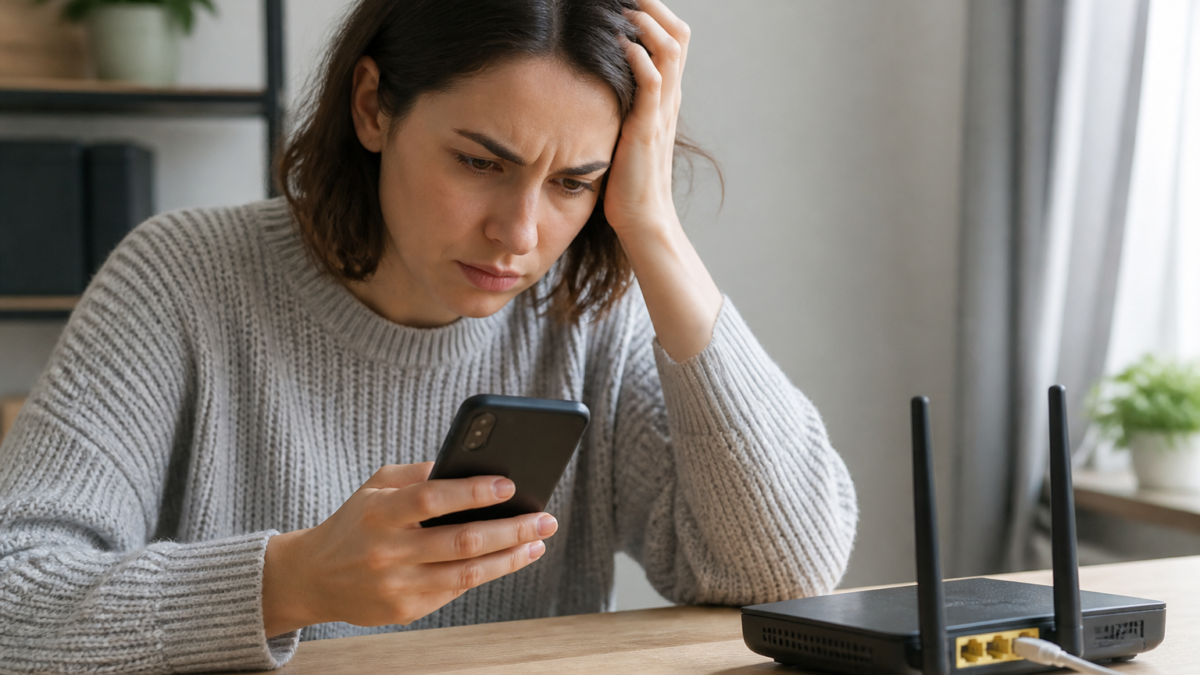
If your iPhone says it’s connected to Wi-Fi but web pages, apps, or emails won’t load, you’re not alone. This widespread issue doesn’t always mean your phone is broken, nor does it necessarily point to a complicated fix. Usually, your iPhone is successfully talking to the local Wi-Fi radio, but something is blocking its access to the wider internet. The trouble can come from several places: your home router, your internet provider, your iPhone’s own settings, VPN or security apps, or even a login page you missed on public Wi-Fi.[1]
This guide walks you through each possible culprit in clear, actionable steps. You’ll learn how to pin down whether your iPhone or the network is at fault, and how to fix common problems—right down to advanced tips like tweaking DNS settings and dealing with VPNs. Before calling your internet provider or Apple, work through these proven solutions. Most users regain full internet access in just a few minutes.
Quick Checklist to Diagnose the Issue
- Can other devices connect to the internet on the same Wi-Fi? (Check with a laptop or another phone.)
- Does your iPhone work on different Wi-Fi networks? (Try another public or home network, if possible.)
- Is your router/router modem showing any warning lights?
- Are there outages reported by your internet provider?
- Is a VPN, security app, or iCloud Private Relay enabled?
Why Does My iPhone’s Wi-Fi Say Connected, But No Internet?
The Wi-Fi checkmark means your iPhone is communicating with your router’s local network—not that it has a path to the wider internet. If the router itself is cut off from the internet due to provider outages, bad cables, or internal issues, your iPhone will display a “No Internet Connection” message or simply fail to load new content.[1]
Identifying where the problem lies is crucial. The table below helps you quickly match symptoms to likely causes:
| Symptom | What It May Mean | Recommended First Step |
|---|---|---|
| Only iPhone fails | Phone settings, VPN, or saved network issue | Restart iPhone, forget/rejoin network, check VPN |
| All devices on Wi-Fi fail | Router, modem, or provider issue | Restart router/modem, check provider outage |
| One network fails | That router’s settings or ISP | Contact router owner/provider, try another network |
| Public Wi-Fi fails | Login/captive portal not completed | Open Safari, sign in if prompted |
Step-by-Step Fixes for iPhone Wi-Fi Not Working
- Toggle Airplane Mode
Turn Airplane Mode on, wait 15 seconds, then off. This resets all wireless radios and often revives stuck Wi-Fi.[2] - Forget and Rejoin the Wi-Fi Network
Go to Settings > Wi-Fi, tap the i next to your network, choose Forget This Network, then reconnect. This clears outdated Wi-Fi profiles.[3] - Restart iPhone
Rebooting refreshes system processes and may resolve a temporary network error.[3] - Restart Router & Modem
Unplug both the router and modem (if separate), wait 30–60 seconds, and plug them back in. Wait for all lights to return to normal. This resolves the majority of home internet issues.[3] - Check for ISP Outages
Use your provider’s status page or a mobile data connection to see if problems are reported in your area.[3] - Disable VPN, Security Apps, and Private Relay
Temporarily turn off VPNs or disable iCloud Private Relay as they can block internet access even when Wi-Fi is working.[1], [4] - Try Another Wi-Fi Network
Switch to a different network (friend’s house, office, public hotspot) to see if the issue is with your iPhone or home network.[5] - Open Safari on Public Networks
On public Wi-Fi, try browsing to any website; you may be redirected to a captive portal that requires login or agreement.[4] - Change DNS Servers
Go to Settings > Wi-Fi > (Your Network) > Configure DNS, switch to manual, and enter 8.8.8.8 and 8.8.4.4. DNS misconfiguration is common.[2] - Update iOS
Go to Settings > General > Software Update to install any available updates; bug fixes frequently address Wi-Fi stability.[2] - Reset Network Settings (Last Resort)
In Settings > General > Transfer or Reset iPhone > Reset > Reset Network Settings. This clears all Wi-Fi networks and VPN configurations.[1] - Check Router Firmware and Try Both 2.4 GHz/5 GHz
If you can log into your router, update its firmware and test both Wi-Fi radio bands.[1] - Check Cables and Physical Connections
Inspect cables between your wall outlet, modem, and router for loose or damaged plugs.[3]
Special Cases: Private Wi-Fi & MAC Filtering, iCloud Private Relay
After iOS updates, your iPhone’s private Wi-Fi addresses may change. Routers with strict MAC address filtering can block your device. Log into your router (if possible) and check if MAC filtering is enabled, or turn off “Private Address” for that network.[2]
Similarly, Apple’s iCloud Private Relay and VPN apps route traffic through separate servers, sometimes breaking connectivity if the network blocks encrypted traffic or if the VPN server is down.[1]
Wi-Fi Troubleshooting Comparison: Who’s at Fault?
| Test | If iPhone has no internet | If other devices also offline |
|---|---|---|
| iPhone on multiple Wi-Fis | Problem is with your iPhone (settings, VPN, etc.) | Problem is likely router, modem, or ISP |
| All devices, same Wi-Fi | Probably local to your iPhone | Check cables, restart router/modem, contact provider |
Public Wi-Fi: Logins and Safety
If your iPhone connects to airport, café, or hotel Wi-Fi but can’t reach websites, open Safari and visit any page to trigger the captive login screen.
Many public Wi-Fi networks require you to agree to terms or log in before full internet access is granted.[4]
General safety tip: Use caution on unsecured public Wi-Fi. Avoid sensitive actions (like online banking) unless you trust the network.
What to Do If Nothing Works
- Reset all network settings (see steps above).
- Try your iPhone on different Wi-Fi networks.
- If every network fails, back up your iPhone and contact Apple Support.
- If all devices fail on the same network and router restarts won’t help, contact your internet provider.
FAQ: iPhone Wi-Fi Connected But No Internet
Why does my iPhone show “Wi-Fi connected, no internet”?
Your iPhone is connected to the local router, but the router isn’t reaching the internet—often from ISP issues, router settings, or temporary outages.[1]
Can a VPN or security app block my iPhone’s internet?
Yes. VPNs or security tools (including iCloud Private Relay) can interfere with your internet connection on Wi-Fi. Try disabling them while troubleshooting.[1]
Does resetting network settings erase other content?
Resetting network settings only clears Wi-Fi passwords, known networks, and VPN configurations. It does not delete photos, messages, or other data.[1]
How do I check for ISP outages?
Visit your internet provider’s official status page or use a mobile data connection to access DownDetector to check for widespread outages.[3]
What DNS settings should I use?
Try setting DNS servers to Google DNS (8.8.8.8 and 8.8.4.4). Incorrect or slow DNS servers often cause loading failures even if Wi-Fi is connected.[2]
Can router firmware affect Wi-Fi connectivity?
Yes, outdated router firmware can cause instability. Check your router admin page for firmware updates if other fixes fail.[1]
Do I need to call Apple or my ISP if internet won’t work?
Contact Apple if your iPhone won’t connect to any Wi-Fi network after all steps above. If all your devices are offline on your home/Wi-Fi, contact your ISP.[3]
Conclusion
Getting stuck with “Wi-Fi connected, but no internet” on your iPhone is frustrating but almost always fixable with some simple troubleshooting. By following the steps above, you can quickly determine if the fault lies with your iPhone, your router, or your provider. Start with the basic checks—toggle Airplane Mode or reboot your devices. Don’t skip confirming other devices’ connectivity, since this instantly identifies whether it’s an iPhone or network issue.
If you try each step methodically, reset network settings only as a last resort. For persistent, system-wide outages affecting all your devices, contact your ISP. For iPhone-specific problems that simple resets don’t fix, reach out to Apple Support. Most users restore full Wi-Fi functionality within a few minutes using these steps.[1], [3]








Leave a Reply