
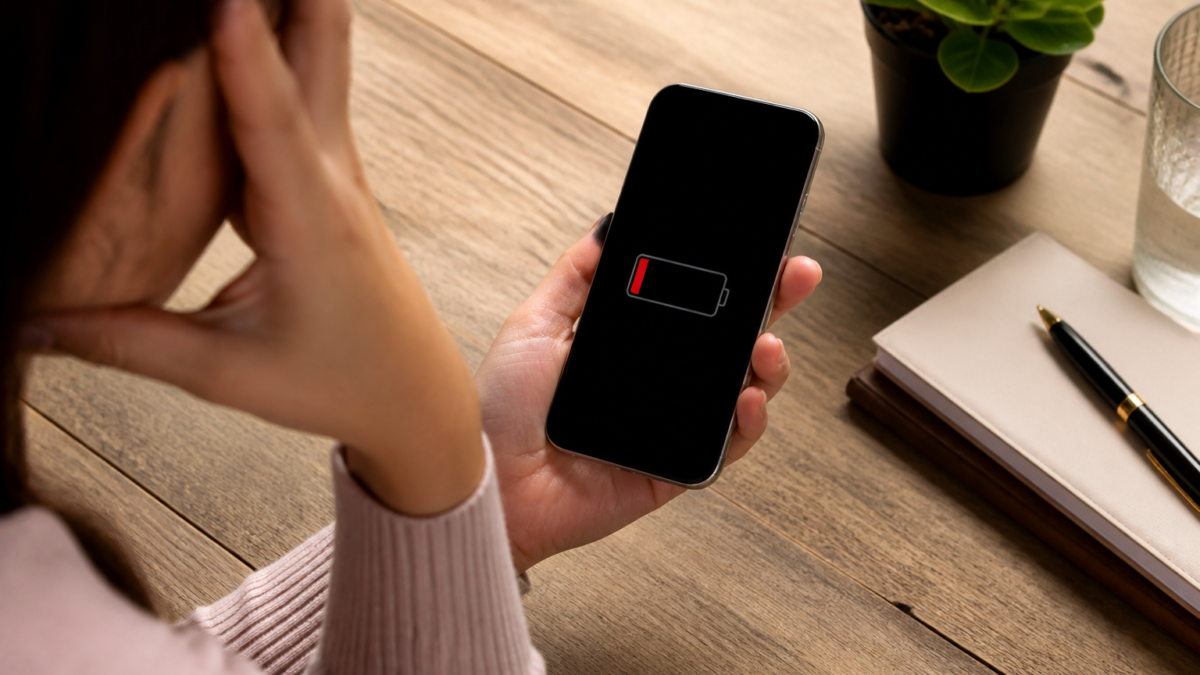
Is your iPhone battery draining fast after an update? You’re not alone—many users notice that their device loses charge more rapidly after installing a major iOS release. In most cases, this is both common and temporary, due to background activity like app refreshing, downloading assets, and system setup processes that run for a time after installation. Apple acknowledges these post-update background tasks, which can cause a noticeable, but short-lived, drop in battery life and increased warmth. But rapid battery drain isn’t always just about the update: persistent issues often stem from app activity, location services, weak signals, or even the natural aging of your phone’s battery.
This guide gives you 10 evidence-based fixes, starting with non-invasive solutions before considering more significant changes. You’ll learn how to use the latest Battery Insights tools to track down offending apps or settings, which mistakes to avoid, and when it’s time to seek service or a replacement battery. With practical steps, mini-checklists, and a comparative table, you can systematically address and resolve most battery drain issues after an iOS update—without falling for battery “miracle fixes” or deleting essential features.
Why Does iPhone Battery Drain Faster After an iOS Update?
After installing a major iOS update, your iPhone carries out a number of essential background processes beyond what’s visible on the update screen. Apple explicitly states that processes like indexing, syncs, and data rebuilding may occur in the background, causing the Ongoing iOS Update message to appear in Settings > Battery. This period can make your device feel warm and more power-hungry for a few days.[1] Importantly, the length and intensity of these background tasks depend on device data, network conditions, and the apps installed — there’s no official fixed timeline.
Aside from update-related tasks, other factors contribute to short battery life:
- Higher screen-on time and brightness: Intensive use or higher brightness increases drain.
- Background or poorly optimized apps: Some apps sync or refresh excessively in the background.
- Weak cell signal: The phone intensifies search for service, using more power.[2]
- Extensive notifications: Frequent alerts wake your device.
- Batteries aging chemically: Battery health declines with use over time.
It’s worth reiterating: seeing rapid drain right after an iOS update most often reflects this temporary, legitimate background processing—not a permanent fault.[3] Wait for these activities to finish before jumping to conclusions or taking drastic action.
What to Check First in Settings
Before changing a raft of settings, it’s smart to diagnose what’s actually using up your iPhone’s energy. Head to Settings > Battery. Newer versions of iOS (26 and later) give you a rich Daily Usage chart—this offers a color-coded comparison to your usual battery pattern, and highlights trends. Look for an Ongoing iOS Update or Ongoing Device Setup insight, which appears whenever background activities related to an update or setup are running.[1]
Select View All Battery Usage for a detailed, per-app (and system) breakdown. Compare high-consumption apps’ on-screen vs background activity. Use the following table to quickly interpret common battery-screen messages:
| Battery Usage Screen Shows | What It Implies | Recommended Action |
|---|---|---|
| Ongoing iOS Update or Device Setup | Background system activity in progress | Leave device on Wi-Fi, reassess after 1–3 days |
| High On-screen activity | Heavy recent use or bright display | Lower brightness, review screen time |
| High Background usage | App is syncing, downloading, or updating offscreen | Check app-specific settings or restrict background refresh |
| Low/No Mobile Coverage | Device searching for cellular signal | Use Wi-Fi or Airplane Mode in low-signal areas |
| Service shown in Battery Health | Battery cannot deliver full capacity | Explore Apple service options |
Tip: Screenshot your Battery settings before making changes. Adjust no more than 1–2 things at a time, compare usage for a full day, then reassess.
10 Fixes That May Help Fix Fast Battery Drain After an iOS Update
1. Let Update-Related Background Tasks Complete
After a major update, give your iPhone some time (usually 1–3 days) for the post-update processing to finish—especially if you see “Ongoing iOS Update” in Battery Insights.[1] Keep your device connected to Wi-Fi as often as possible—cloud-based updates process faster and more efficiently over Wi-Fi than cellular data. Once the insight disappears, you should see improved battery life. If issues persist, proceed to further steps.
2. Analyze Apps and System Processes Using the Most Energy
Settings > Battery > View All Battery Usage shows which apps consume the most power both on screen and in the background. Some apps (navigation, streaming, mapping) justifiably use more battery. But a rarely used app showing excessive background activity often deserves scrutiny. Investigate that app’s notification, location, and background refresh permissions—and update or remove it if the excessive consumption continues, making sure critical data is backed up.
3. Update All Apps After System Update
iOS updates sometimes expose old, incompatible versions of apps. App Store updates are typically automatic, but manual checks are wise right after a system upgrade. Open App Store > your profile and apply all available updates, prioritizing any high-drain offenders identified in Battery settings. If an app continues to misbehave even after updating, check its developer’s support page or remove/reinstall as needed.
4. Restart Your iPhone
Restarting can clear temporary glitches or stuck processes that escalate power use. On iPhone X or later, press and hold either volume button and the side button until you see the power-off slider, then restart. A fresh boot often resolves minor issues without data loss.
5. Use Low Power Mode for Immediate Relief
Low Power Mode disables most non-essential background activities, lowers visual effects, and can stretch your charge while troubleshooting. Enable from Settings > Battery, or via Control Center. Tradeoffs: apps may refresh less often, “Hey Siri” disables, display brightness lowers, and some mail fetches are paused. This tool gives breathing room for diagnosis but does not correct underlying battery degradation.
6. Try Adaptive Power (on Supported iPhones, iOS 26+)
For iPhones with iOS 26 or later, Adaptive Power under Settings > Battery > Power Mode automatically tweaks system settings—like brightness, background refresh, and performance—on high-usage days, and activates Low Power Mode at 20%. It works best over time, adapting to your charging patterns.[4] This feature is not a one-tap fix, but it can smooth battery life fluctuations for heavy users.
7. Reduce Display and Screen Time Sensibly
Displays are major power consumers, especially on larger and brighter screens or during outdoor use. Drop brightness through Control Center, or enable Auto-Brightness through Settings > Accessibility > Display & Text Size. Shorten Auto-Lock intervals to turn the screen off when not in use. Don’t sacrifice readability—just avoid unnecessary drain.
8. Limit Background Activity and Unneeded Notifications
Go to Settings > General > Background App Refresh to keep needed apps up-to-date, while cutting off background access for less essential ones. Messaging and navigation apps often need to function in the background, but games or shopping apps rarely do. Likewise, Settings > Notifications lets you turn off alerts that generate frequent, nonessential waking of your phone.
9. Review and Adjust Location Services
Location and GPS are major battery consumers. In Settings > Privacy & Security > Location Services, check which apps have “Always” access. Switch most apps to While Using or Ask Next Time as appropriate, and disable Precise Location unless strictly necessary. Retain location for navigation, emergency, or critical apps as needed.
10. Improve Connectivity and Seek Out New iOS Updates
Poor cellular signal makes your phone work harder and drains battery more quickly. Using Wi-Fi, when possible, helps reduce that drain. In areas with no service, enable Airplane Mode to prevent the device from endlessly searching for a network (but remember: you won’t get calls or notifications). Also, check for a newer iOS update—Apple may have released bug fixes or optimizations for battery behavior.[1]
How to Tell If Your Fixes Are Working
Don’t judge battery fixes by percentage alone—daily activities like streaming, gaming, or travel can skew results. Use Settings > Battery > Daily Usage to compare similar days (weekday to weekday, or weekend to weekend) for a realistic understanding of improvements. Specifically note:
- Screen-on hours and what was running
- Overnight standby drain
- Changes after specific settings tweaks
- Whether the phone is warm during light use (indicates background activity)
Try this simple checklist:
- Screenshot Battery stats before changes
- Modify 1–2 settings only
- Compare the next full day’s stats
- Repeat as needed
If charging behavior seems erratic (e.g., the battery doesn’t fully charge or drains abnormally fast), check cables and adapters for wear or damage, and clean any debris from the charging port.
Checking Battery Health: When Service Makes Sense
Over time, all iPhone batteries lose capacity with regular use. In iPhone 15 and later, Settings > Battery > Battery Health shows Maximum Capacity, Peak Performance Capability, and any service alerts. Earlier models have a Battery Health & Charging menu instead. If your battery reports less than 80% capacity, or a Service message, you may experience reduced runtime and should consider an official Apple or authorized service assessment—especially if the phone unexpectedly shuts down, gets excessively warm, or the case swells.[2]
Battery health statistics offer context but are not the sole indicator. If you see sudden runtime drops, erratic charge readings, or recurring service messages after updating, it’s wise to get expert help. Never use apps that claim to “restore” physical battery capacity—Apple confirms that battery degradation is chemical, and only hardware replacement restores lost capacity.[2]
Post-Update Battery Drain: What Not to Do
- Don’t force-close all apps: Apple recommends closing only unresponsive apps; excessive force-closing can worsen battery drain by forcing constant relaunches.[2]
- Skip “battery booster” apps: No App Store app can fix or physically restore your battery.
- Don’t disable everything at once: You risk breaking notifications, navigation, or security features—make targeted changes only.
- Delay factory resets: Erasing your phone is disruptive and often unnecessary if you follow the steps above.
- Don’t ignore heat: Operating or charging in high temperatures can permanently degrade battery life. Allow a hot device to cool naturally—never use ice/freezer methods.
Special iOS 27 Note: “Optimizing Search and Siri”
If you see an “Optimizing Search and Siri” notification after updating to iOS 27, this indicates deep system re-indexing—especially since Search was rebuilt in iOS 27. While this can cause temporary extra battery drain, it is a known and generally short-lived process.[5] Let it finish before making major changes to your settings.
FAQs About iPhone Battery Drain After Update
Is battery drain normal immediately after updating iOS?
Yes, moderate battery drain (and sometimes extra warmth) is typical right after a big iOS update. This is due to background tasks like setup, indexing, and syncs running post-installation. These processes are generally temporary.[1]
How long does post-update battery drain last?
Apple does not specify a duration, but third-party reports and user forums suggest background tasks may stabilize within a day or two, sometimes up to a week.[3] If drain persists after several normal days, investigate further.
Should I close all apps to save battery?
No. Closing every app is not recommended by Apple and can be counterproductive. Focus only on resolving unresponsive or obviously problematic apps, not routine force-closures.[2]
Can a third-party app repair my iPhone’s battery health?
No. Apps cannot reverse the chemical aging of a battery. Hardware service (replacement) from Apple or an authorized provider is the only fix for diminished maximum battery capacity.[2]
Will installing another iOS update fix battery issues?
Potentially. Sometimes, Apple releases maintenance updates addressing battery or performance bugs. Always check for subsequent updates—but expect another temporary spike in background work after install.[1]
What does “Ongoing iOS Update” mean in Battery Insights?
This insight confirms background system activity post-update. Once it disappears, your battery usage should return to normal. If not, continue troubleshooting for app, health, or connectivity issues.[1]
When should I seek professional battery service?
If Battery Health shows Service; if battery capacity falls below 80%, or if you observe swelling, inconsistent charging, or abrupt shutdowns, contact Apple or an authorized service provider. Don’t delay professional help for hardware-related issues.
Conclusion
In most cases, a fast-draining iPhone battery right after an iOS update is normal and temporary—caused by post-update background processing, not a permanent defect. Use Apple’s improved Battery Insights to track down causes, allow system tasks to complete, and selectively update or reconfigure apps. Features such as Adaptive Power and Low Power Mode in iOS 26/27 offer extra efficiency, while avoiding common mistakes (like closing all apps or using “battery booster” apps) can keep your troubleshooting focused.
If battery drain persists longer than a week after you’ve tried these fixes—and especially if you see battery service messages, unexpected shutdowns, or swelling—it may be time for professional help or battery replacement. Above all, diagnose thoughtfully, act selectively, and use Apple’s built-in tools to maintain your iPhone’s power and performance after any update.









Leave a Reply