
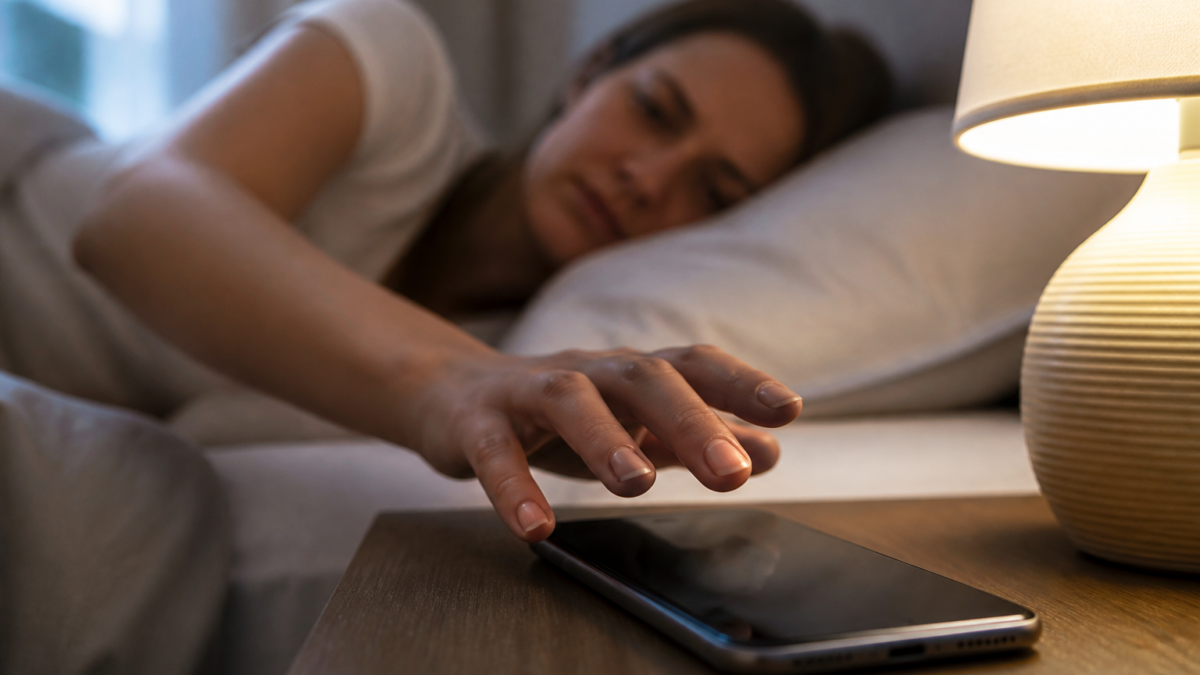
Understanding the Long-Standing Alarm Volume Problem
For many years, iPhone users experienced the frustrating limitation that the alarm and timer volumes were inseparably tied to the device’s ringtone volume. Silencing your phone at night often led to missed alarms and late awakenings because the alarm would also be quieted, which impacted countless morning routines and important reminders. With iOS 27, released on September 14, 2026, Apple has responded decisively to this persistent complaint by introducing independent volume controls for alarms, timers, alerts, system sounds, and the ringtone itself.[1][2]
Why Independent Alarm Volume Is a Major Improvement
This feature is more than a quality-of-life update; it solves real-world issues for anyone who wants their phone muted for calls and texts overnight but still needs alarms to ring loud and clear. With iOS 27, you can finetune your iPhone’s audio environment—giving high priority to alarms while keeping the rest of your phone discreet, which is invaluable for shift workers, parents, travelers, students, or anyone with sensitive sleep routines.[3]
How to Set Separate Alarm Volume on iPhone (iOS 27)
Apple’s process for unlinking alarm volume from ringtone volume is intentionally straightforward. Here’s how you do it:
- Open the Settings app.
- Tap Sounds & Haptics.
- Find the Alarms & Timers section.
- Disable Match Ringtone Volume under this section. This reveals an independent volume slider for alarms and timers.
- Adjust the slider to set your desired alarm and timer volume. This setting will remain until changed again—completely independent of ringer volume.
If you want to return to the classic behavior (where the alarm matches the ringtone volume), simply toggle Match Ringtone Volume back on.[2][4]
Fine-Tuning: Alerts & System Sounds Versus Alarms
Besides alarms and timers, iOS 27 also brings a separate toggle and slider for managing alert and system sound volumes independently. Under the Sounds & Haptics menu, look for the Alerts & System Sounds section. Disabling Match Ringtone Volume here will provide a distinct slider to set the volume for notifications, keyboard clicks, and other system sounds individually, so each category of iPhone sound can be tailored to your preferences.[2][3]
| Feature | iOS 26 (and earlier) | iOS 27 |
|---|---|---|
| Alarm/Timer Volume | Tied to Ringtone Volume | Independent slider in Settings |
| Alert & System Sound Volume | Tied to Ringtone Volume | Independent slider in Settings |
| Sleep/Wake-Up Alarm Control | Separate control in Health/Sleep | Remains separate; not affected by new sliders |
| Revert to Unified Behavior | N/A | Toggle “Match Ringtone Volume” on |
Key Details: Wake-Up (Sleep Schedule) Alarms
It’s important to know that alarms configured through the Health app’s Sleep schedule (sometimes called Wake-Up alarms) still retain their own, independent volume control, exactly as before. Adjusting the Alarms & Timers slider in Settings > Sounds & Haptics will NOT affect these special alarms—they must be adjusted through their own in-app settings.[3][4][5]
Leveraging “Change with Buttons”: What to Expect
iOS 27’s “Change with Buttons” toggle (located in Sounds & Haptics) now refers to the ringer volume unless you specifically enable it for sliders in Alarms & Timers or Alerts & System Sounds. If the “Change with Buttons” option is turned off for alarms, the iPhone’s physical volume buttons will not adjust your alarm/timer volume—only the media volume. You must adjust the alarm/timer slider in settings instead for persistent changes.[4]
Checklist: Steps to Set Independent Volume Controls (iOS 27)
- Update iPhone to iOS 27.
- Go to Settings > Sounds & Haptics.
- For alarms and timers: disable Match Ringtone Volume and adjust the slider.
- For alerts and system sounds: disable the second Match Ringtone Volume and adjust its slider.
- Verify that Change with Buttons behaves as desired—for persistent alarm volume, keep this off.
- If you use Health/Sleep Wake-Up alarms, manage their volume within the Health app.
Troubleshooting Tips: If the Alarm Volume Doesn’t Behave as Expected
- Confirm iOS 27 is fully installed. Some features may not work as expected on earlier versions.
- Restart your iPhone to clear out temporary glitches.
- Check that the correct Match Ringtone Volume toggles are set according to your preferences.
- Remember: Wake-Up (Sleep schedule) alarm volume is not controlled by the new slider—adjust it where you set the alarm.
- Consult Apple Support documentation or contact support if alarms remain silent despite settings.[2]
Frequently Asked Questions
How do I revert to the old alarm volume behavior?
Simply return to Settings > Sounds & Haptics > Alarms & Timers and re-enable Match Ringtone Volume. Your alarm and ringer will once again share the same volume.[4]
Are existing alarms affected when I adjust the global alarm volume slider?
Yes. All standard alarms and timers (those not managed through the Sleep schedule in Health) will sound at the independently set volume as soon as you disable Match Ringtone Volume and adjust the slider. Only Wake-Up/Sleep schedule alarms retain their separate volume.[3]
Can I set a different volume for notifications and keyboard clicks?
Yes. In Settings > Sounds & Haptics, under Alerts & System Sounds, disable Match Ringtone Volume to access their dedicated slider.[2]
Why isn’t my Wake-Up (Health app) alarm affected by these settings?
Wake-Up alarms configured via your Sleep schedule have always used their own in-app volume control. This remains unchanged in iOS 27, so they will only be affected by settings within the Health app.[3]
What iPhones support these independent volume features?
All iPhones that can install iOS 27 gain these controls. Check Apple’s compatibility list to confirm your device is eligible.[1]
Can I change alarm volume with the side buttons?
Only if you have “Change with Buttons” enabled for alarms. Otherwise, the side buttons adjust only media volume. This prevents accidental changes to your crucial wake-up alarm sound.[4]
Why might my alarm still not sound?
If the alarm slider is at minimum, the alarm will not ring, regardless of your ringer or system sound volumes. Always double-check the alarm volume slider setting and your phone’s Do Not Disturb or Sleep Focus settings if you don’t hear alarms.
Summary and Takeaways
The debut of truly independent alarm volume on iPhones running iOS 27 finally resolves one of the platform’s most consistent user complaints. No more risky trade-offs between wanting a silent night and a reliable wake-up call. By using the new Match Ringtone Volume toggles and dedicated sliders for alarms, timers, and system sounds, users can fully customize each important aspect of their iPhone’s audio environment. Most importantly, Health app Wake-Up alarms remain separate, so you always have granularity where you need it most. This change means fewer missed alarms, less stress, and far more control available at your fingertips.[2]
Editorial note: This guide is based on Apple’s official documentation and independently corroborated reviews as of September 24, 2026. For up-to-date information, always check Apple’s support site.







Leave a Reply