
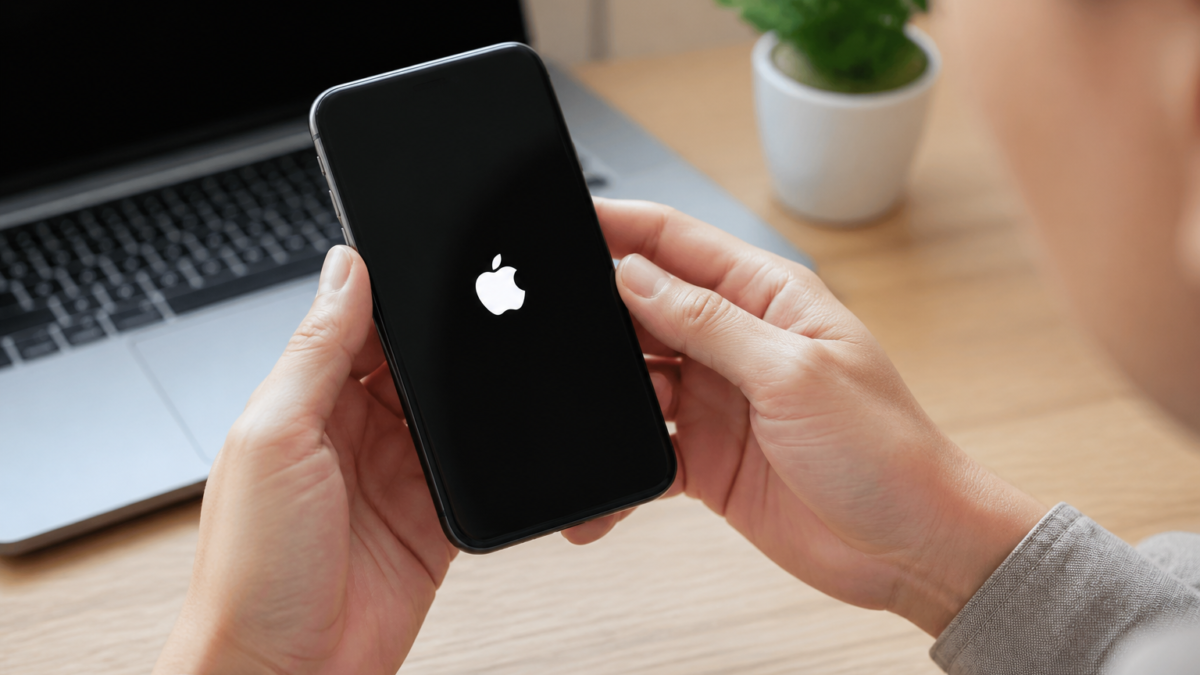
An iPhone stuck on the Apple logo, a frozen progress bar, or the recovery screen isn’t always the disaster it appears to be. While these symptoms may look alarming, a careful, step-by-step approach is usually the safest route to get your device working again—and may even help avoid data loss. It’s crucial to first recognize what your screen is showing, check your power and accessories, try a force restart, and only then escalate to recovery mode. Choosing the proper sequence can save your information and minimize frustration.
This guide uses verified advice from Apple and top independent repair specialists to clarify each stuck scenario: a simple frozen logo, a slow or halted progress bar, a persistent boot loop, or the Connect to computer screen. Read carefully to match your situation, avoid accidental erasure, and know when it’s time to seek hands-on help.
Understand What Your iPhone’s Screen Is Showing
Not every “stuck” iPhone means the same thing. Before trying fixes, carefully observe the screen and recall what led up to the problem. Each symptom points to a different troubleshooting path.[Source][Source]
| What you see | Possible meaning | First action |
|---|---|---|
| Apple logo, no progress bar | iOS failed to start. May be stuck or in a boot loop. | Try a force restart, then recovery mode if still stuck. |
| Apple logo with progress bar | Ongoing update, restore, migration, or erase process. | Wait for up to 1 hour with power connected. Only act if unchanged after 1 hour. |
| Connect to computer screen (cable and computer icon) | iPhone is in recovery mode and needs a computer. | Connect to a computer and check for Update/Restore prompt. |
| Apple logo appears/disappears repeatedly | Device is boot-looping—can’t finish starting up. | Force restart, then consider recovery mode update. |
| Completely black screen | Battery may be empty, screen may be off, or phone is not responsive. | Charge for 30–60 minutes using a reliable cable/adapter. |
- If your iPhone is displaying a progress bar after an update, give it time. Apple advises waiting up to an hour before moving to force restart or recovery mode.
[Source][Source]
Essential Checks Before a Force Restart
Skipping simple checks can lead to unnecessary risk and lost data. Always do these basic steps before attempting a force restart:
- Plug in your iPhone. If it’s a black or unresponsive screen, charge the device for at least 30 minutes on a known-good charger and cable.
[Source] - Inspect the cable and port. Debris, a loose fit, or a poor-quality cable/adapter can mimic system failure. Try a different certified cable if possible.
- Remove unnecessary accessories. Disconnect all accessories except your charging cable. Hubs, docks, and other extras can interfere with recovery.
- Check for external or physical damage. Drops, water contact, or damaged charging ports/buttons may require professional service.
Avoid repeatedly unplugging during updates or using unfamiliar repair tools. Escalate methodically to minimize risk of accidental erasure.
How to Force Restart (by iPhone Model)
Force restart safely reboots the device without erasing anything. Button sequences differ by model:
| Model | Force Restart Sequence |
|---|---|
| iPhone 8 or later (incl. SE 2nd/3rd Gen) | Quickly press Volume Up, then Volume Down, then press and hold Side button until Apple logo reappears (may take >10s). |
| iPhone 7/7 Plus | Press and hold Side + Volume Down until logo shows, then release both. |
| iPhone 6s or earlier (incl. SE 1st Gen) | Press and hold Home + Side (or Top) until logo appears, then release. |
If your phone restarts normally, unlock it and immediately back up your data. If it returns to the Apple logo or boot loop, don’t repeat force restarts endlessly—proceed to recovery mode.[Source]
Recovery Mode: Update First, Restore Only If Necessary
If force restart fails, use recovery mode—a special state that lets a Mac or PC attempt to repair the software. Here’s how to proceed, step by step:
- Connect iPhone to computer. Use Finder (macOS Catalina+), Apple Devices (Windows PC/newer Mac), or iTunes (older Mac/PC where Apple Devices isn’t available).
- Use the correct force restart sequence for your model but keep holding the buttons past the Apple logo until the recovery screen appears (a cable and computer icon).
- On your computer, locate your iPhone. When prompted, choose Update first (this keeps your data). If Update fails, try Restore only after exhausting Update. Restore will erase your device and reinstall iOS.
[Source][Source]
- Keep the cable connected throughout. If software download for Update takes over 15 minutes, your iPhone may exit recovery mode; repeat the entry sequence if needed.
- After Update or Restore, follow onscreen prompts to set up the iPhone, and restore from any available backup.
Update vs. Restore: Preserving Data vs. Erasing
| Option | Description | Data Risk | Use When… |
|---|---|---|---|
| Update (recovery mode) | Reinstalls iOS while trying to keep data intact. Always try first. | Low—designed to preserve user data. | After force restart fails but before erasing. |
| Restore (recovery mode) | Wipes device and installs latest iOS. | High—erases all device contents/settings. | Only if Update fails or is unavailable. |
Entering recovery mode does not erase your phone—erasure only happens if you select Restore and confirm the process.[Source]
Troubleshooting: If Your Computer Doesn’t Recognize the iPhone
- Ensure your computer has the latest updates and Apple Devices/iTunes app.[Source]
- Connect the iPhone directly to the computer (no hubs or docks).
- Try another data-capable cable or USB port.
- Restart Finder, Apple Devices, or iTunes, and repeat the recovery steps.
- Check for specific error codes (e.g., 9, 14, 4005, 4013, 4014); record and search these on Apple’s support site for targeted advice.
- Try another updated computer if possible.
Advanced Recovery: DFU Mode and Third-Party Tools (Use Only as Last Resort)
If you’ve tried Update and Restore and your iPhone remains nonfunctional, some advanced users attempt Device Firmware Update (DFU) mode or third-party repair tools. However, these methods carry significant risk of data loss and are generally recommended only after exhausting official Apple recovery methods.[Source]
If your data is crucial or hardware damage is suspected, consult Apple or an authorized repair provider before experimenting further.
When to Seek Apple Support or Professional Repair
- Neither Update nor Restore works, or errors repeat even after following all cable/computer steps
- The computer never detects the device, even on multiple ports/computers
- Buttons (Home, Side, Volume) are damaged and prevent rescue modes
- Device has suffered recent drop, water, or physical trauma
- Display is blank but device is known to be on (may be a screen failure)
Apple’s technicians and authorized repairers can run diagnostics and give an accurate assessment. Always clarify the risks to your data before giving over the device for repair.
Checklist: Reducing Startup Failure Risks in the Future
- Enable iCloud Backup or make regular encrypted computer backups
- Complete backups before installing major updates
- Maintain at least 10–20% free storage for system operations and updates
- Update iOS only with stable Wi-Fi and reliable power
- Don’t interrupt updates or disconnect during restores
- Record and safeguard your device passcodes and encrypted backup passwords
- Handle your iPhone with care and use protective cases to minimize drop/liquid exposure
Frequently Asked Questions
Will a force restart erase my iPhone data?
No. A force restart is designed to reboot the device safely and does not delete apps, photos, or settings. It’s different from a factory reset or device erase.[Source]
How long should I wait for the progress bar to move?
If the Apple logo and progress bar appear following an update or restore, keep the iPhone connected to power and wait up to one hour before attempting recovery. Only begin troubleshooting if it hasn’t moved after that time.[Source]
Does putting an iPhone in recovery mode erase it?
No. Entering recovery mode presents options; Update (which attempts repair) does not erase. Restore will erase all data and settings if selected and confirmed.[Source]
What if my iPhone exits recovery mode during a software download?
If it leaves recovery mode before download completes, let the download finish, then repeat the button sequence to re-enter recovery mode and retry.[Source]
Can I fix this without a computer?
Sometimes charging and a force restart work, but most cases (especially with recovery/boot loop issues) require access to a Mac or Windows PC with Apple Devices, Finder, or iTunes.[Source]
Why does my iPhone keep showing the recovery screen after Restore?
This may signal incomplete installation, deep software faults, hardware failure, or cable issues. Try connecting with different cables/computers. If it recurs, seek authorized service.
Should I use third-party iOS repair tools?
Use caution: third-party apps can’t guarantee recovery and may cause erasure just like Apple’s Restore. Reserve them for last efforts, and always clarify data loss and privacy risks first.
Conclusion
An iPhone stuck on the Apple logo or recovery screen can often be rescued by following the least aggressive steps first: wait out active updates, check power and connections, use the safe force restart, then carefully attempt recovery mode (choosing Update first). Never repeatedly force restart or use unfamiliar tools out of frustration, as this risks unnecessary data loss. If multiple attempts fail or signs of physical damage are present, consult Apple or an authorized technician before proceeding. Once your device is working, double-check your backup health—so you’re prepared for whatever comes next.









Leave a Reply