
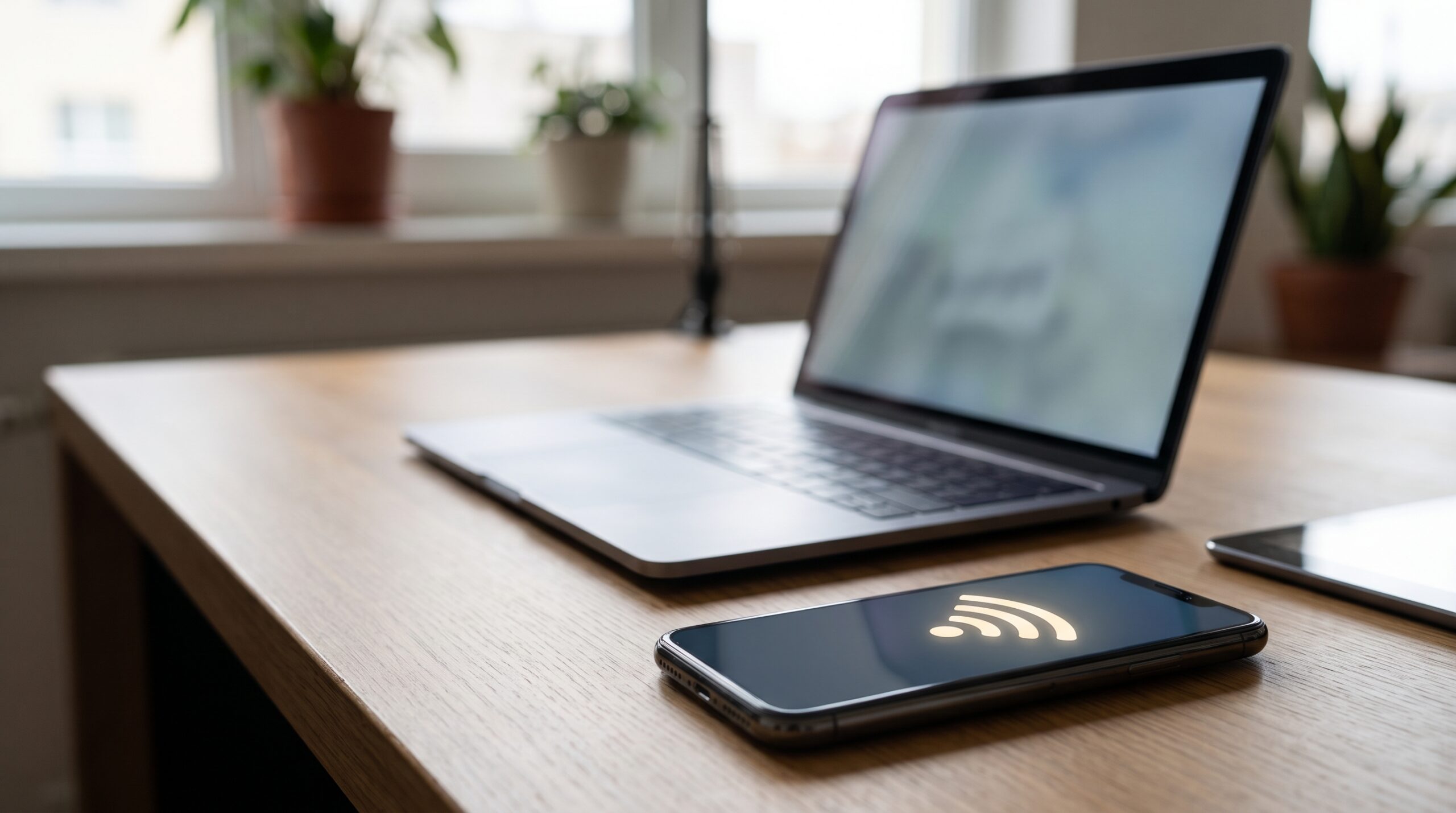
An iPhone personal hotspot not working can mean several different things. The hotspot switch may be missing, a laptop may fail to see the network, another phone may ask for the password repeatedly, or a connected device may show Wi-Fi bars while webpages refuse to load. Those symptoms do not all have the same cause, so resetting everything immediately is rarely the best first move.
Start by confirming that mobile data actually works on the iPhone, your mobile plan allows hotspot sharing, and Allow Others to Join is enabled where applicable. Then test the connection on one nearby device. These checks separate a cellular-service problem from a Wi-Fi discovery problem before you change saved network settings.
This guide walks through a practical diagnostic sequence for Wi-Fi, USB and Bluetooth tethering. It also explains what Maximize Compatibility does, how to distinguish carrier restrictions from device settings, when to reset networking, and which details to collect before contacting support. Menu names may differ slightly depending on iOS version, device model and region.
1. Identify Which Hotspot Problem You Actually Have
A hotspot is not simply an ordinary Wi-Fi router inside your phone. An iPhone uses its cellular connection for internet access, then shares that connection with another device using supported methods such as Wi-Fi, Bluetooth or a cable. A failure in any part of that chain can look like a generic “hotspot not working” problem. The fastest route is to identify the broken link instead of changing multiple settings together.
First, turn off Wi-Fi on the iPhone temporarily and open a familiar website using cellular data. If that does not work, the issue may be cellular coverage, account status, a data restriction or a carrier outage. Personal Hotspot will not repair a cellular connection that has no usable internet access. If cellular browsing works normally, continue to hotspot discovery and authentication checks.
Next, determine whether the other device can see the hotspot network. A network that is missing from the Wi-Fi list points toward broadcasting, compatibility or proximity. A network that appears but rejects the password points toward credentials or an incomplete connection. A device that connects successfully yet cannot browse points toward cellular data, routing, VPN behavior or a temporary network fault. These are useful distinctions when asking a carrier or device support team for help.
| What you see | Most useful first check | What it suggests |
|---|---|---|
| Personal Hotspot setting absent or dimmed | Carrier plan and cellular data status | Feature availability or account configuration |
| Hotspot name absent on laptop | Allow Others to Join, proximity, Wi-Fi toggle | Discovery or wireless compatibility |
| Password rejected | Read password directly on iPhone | Credential mismatch or saved network error |
| Connected, but no internet | Browse over cellular on iPhone itself | Upstream cellular or routing problem |
| Disconnects after a short time | Power, signal and receiving-device behavior | Intermittent link or system power management |
| USB connection not detected | Cable data support and computer trust prompt | Physical or computer configuration issue |
Do not interpret a single speed test as definitive proof of a broken hotspot. Cellular speed can change with signal, congestion and the number of connected devices. For a fair test, use one receiving device, one familiar site and a stable location. Avoid testing through a workplace VPN or captive portal until you know the basic connection is functioning.
A useful first record is simple: note the iPhone model, approximate iOS version, mobile carrier, whether cellular browsing works, receiving-device type, connection method and exact error message. If you later need support, that short record saves considerable repeated troubleshooting. It also helps prevent an unrelated update or configuration change from being blamed for the failure without evidence.
2. Restore the Basic Cellular and Hotspot Settings
Open Settings > Cellular (called Mobile Data or Mobile Service in some regions) and verify that cellular data is enabled. Test an ordinary web page on the iPhone with Wi-Fi disabled. If the page fails, confirm your line is active and that you have usable data service. A plan can allow normal browsing yet restrict tethering, so you should check the carrier’s hotspot policy rather than assume the two services are identical.
Next, open Settings > Personal Hotspot. Turn on Allow Others to Join when you are connecting a device that is not automatically recognized through your Apple Account or family sharing. Leave this settings page open during the first connection attempt; this is one of Apple’s recommended steps for Wi-Fi hotspot discovery. Look at the network name and password shown there, not at an old screenshot or a remembered password from last month.
Restart both devices. A full restart can clear a temporary wireless state that survives repeated attempts to toggle Wi-Fi. Restarting only the iPhone may not be enough if the receiving laptop has saved an outdated password or is attempting to join a similarly named network. After both devices start, turn Wi-Fi on at the laptop, select the exact iPhone network name and enter the current password.
If another device sees the hotspot while your main laptop does not, focus your next tests on the laptop. Forget the saved hotspot network on that device and connect again. If nothing can discover the hotspot, focus on the iPhone’s sharing settings, nearby interference, compatibility and carrier authorization. These comparisons are more informative than repeatedly tapping the same error dialogue.
Check for software updates when the connection remains unstable, but do not update during a time-critical work session without a backup and reliable connectivity. Software updates can address defects; they are not a guarantee that a carrier limitation or damaged cable will disappear. If the hotspot worked yesterday and stopped after an account or SIM change, contact the carrier sooner rather than searching for increasingly obscure menu toggles.
Quick connection checklist:
- Confirm that cellular internet works on the iPhone without Wi-Fi.
- Check that the mobile plan supports hotspot or tethering.
- Enable Personal Hotspot and Allow Others to Join where required.
- Keep both devices close together for the initial connection.
- Use the displayed password and correct iPhone network name.
- Restart the iPhone and receiving device, then test once more.
Apple’s current troubleshooting guide covers these baseline steps: If Personal Hotspot is not working. Country-specific carrier wording and iOS menus may vary, so use the instructions on your device when their labels differ.
3. Fix a Hotspot That Does Not Appear or Rejects Connections
A missing hotspot network is often a discovery problem rather than a failure of cellular internet. On the receiving device, toggle Wi-Fi off and back on, wait for the available network list to refresh, and move closer to the iPhone. Keep the iPhone awake and on the Personal Hotspot settings screen for the first connection. Confirm you are looking for the device name displayed on the iPhone; several nearby phones may have similar generic names.
If an older laptop, smart device or another phone cannot find the network, try Maximize Compatibility in Personal Hotspot settings when the option is available. Apple lists this option for supported iPhone models as a troubleshooting step. It can help some devices connect by changing hotspot wireless behavior, but Apple notes that performance and Wi-Fi security may be reduced. Use it as a compatibility test rather than a universal setting that must remain on forever.
A password failure deserves a separate test. View the password on the iPhone itself, carefully enter upper- and lowercase letters, and avoid copying trailing spaces. On the receiving device, remove the remembered network before retrying. A laptop may keep using a previously saved password even when the current one is correct. If you changed the phone’s name, make sure the receiving device is joining the new hotspot rather than an older profile.
Mac users signed in to the same Apple Account may sometimes connect through Instant Hotspot without manually entering a password. That convenience does not mean all neighboring devices should connect automatically. Devices using another account, a Windows laptop, or a visitor’s phone usually need the standard hotspot visibility and password flow. Check each situation instead of assuming an Apple-only shortcut applies to everyone.
Some networks impose restrictions on peer-to-peer or local discovery, and some devices use enterprise configuration profiles that limit wireless connectivity. On a managed laptop, ask the administrator before changing security profiles or network services. On your personal device, a temporary test with a trusted alternative laptop can help identify whether the problem follows the hotspot or the receiving device.
If a laptop joins but disconnects repeatedly, observe when it happens. Does the disconnect occur when the phone loses cellular signal, the laptop sleeps, the screen locks, or large downloads begin? A short, repeatable test is more useful than declaring that “hotspot keeps dropping.” Record the pattern and check power-saving settings on the receiving device if the problem only happens after it sleeps.
4. Connected to Hotspot but No Internet: Trace the Full Connection
When the receiving device shows that it is connected to your iPhone but cannot open websites, confirm the upstream connection first. Turn Wi-Fi off on the iPhone and test multiple ordinary sites over cellular data. If those pages fail, the hotspot connection itself may be fine while the phone’s mobile data is unusable. Check coverage, account restrictions and possible outages before you change the laptop’s DNS configuration.
If mobile data works on the iPhone, disconnect the receiving device from the hotspot and join again. Try a second receiving device if available. If one connects normally and the other does not, examine the failing device’s saved network, proxy settings, VPN and local security software. If neither can browse, the likely fault is closer to the hotspot sharing path, carrier policy or temporary iPhone network state.
A VPN can complicate this diagnosis. Depending on the configuration, a VPN or network security product may change routes, filter connections or block specific destinations. Do not permanently disable work-managed security to troubleshoot; ask the organization for its approved test procedure. On personally managed devices, compare the connection with and without a trusted VPN only when doing so is permitted and safe.
Some workplaces and hotels also use captive portals or require registration before a network provides general internet access. But remember that an iPhone Personal Hotspot normally shares cellular data rather than rebroadcasting the Wi-Fi network the iPhone is using. If you expected it to extend hotel Wi-Fi, that expectation may be the source of confusion. Verify which connection the phone is actually using for its own internet access.
Try a limited practical test before downloading large files. Open a simple website, load a second unrelated page, and send a small message or document. If these work but video calls or large downloads fail, congestion, cellular plan policy, upload capacity or app-specific restrictions may matter. The phrase “connected, no internet” can hide several levels of service quality, from complete failure to selective access problems.
Decision guide:
| Cellular works on phone? | Other device can join hotspot? | Next direction |
|---|---|---|
| No | Yes or no | Investigate cellular service/carrier first |
| Yes | No | Check hotspot visibility, password and compatibility |
| Yes | Yes, but one app fails | Test application-specific settings and VPN |
| Yes | Yes, all apps fail | Compare another receiver; investigate sharing or carrier |
Where possible, test at a second location with stronger mobile coverage. This distinguishes a persistent device setting problem from location-dependent signal weakness. Do not treat a single improvement as proof of a specific hardware failure; mobile networks change constantly, especially during travel and peak usage periods.
5. USB and Bluetooth Hotspot Troubleshooting for Laptops
Wi-Fi is convenient, but USB tethering is useful when a laptop has poor wireless reception or you want a more stable physical connection. The USB cable must support data transfer, not merely charging. If a cable charges the phone but the computer never recognizes it, test a known-good data cable and a different port before changing software settings. Avoid damaged cables or adapters that create loose, intermittent connections.
On a Mac, connect the iPhone using a compatible cable and respond to any Trust This Computer prompt appropriately. Then check network settings for an iPhone USB service. Apple documents adding or reactivating that service if it does not appear or is inactive. Mac menu labels vary by macOS version, so do not follow an old screenshot literally when your system uses different names. Update macOS if needed and retry the connection.
Windows users should verify that the computer recognizes the iPhone and has the software or drivers required for communication with an Apple device. Check USB connection and trust permissions before assuming that the mobile plan is blocking tethering. If USB tethering works through one port but not another, inspect the computer port or adapter. Avoid downloading unofficial driver installers from random sites because a hotspot problem is not worth compromising the laptop.
Bluetooth tethering is another option, but it is generally less straightforward for large transfers and can be affected by pairing state. Turn Bluetooth on for both devices, pair them through their normal settings and confirm that the receiving device supports tethering over Bluetooth. If a pairing record is stale, remove the saved pair and reconnect. For performance-sensitive tasks, compare Wi-Fi or USB instead of relying on Bluetooth alone.
Only change one connection method at a time during testing. If Wi-Fi fails but USB works, cellular sharing itself is probably functioning and your investigation can focus on wireless discovery, compatibility or receiving-device settings. If none of the methods work despite healthy cellular data, a carrier restriction or broader networking issue becomes more plausible. That is a useful result even if it does not immediately restore service.
When connecting a work laptop, consider company policies. Some devices intentionally prevent internet sharing, installation of drivers or unmanaged networks. Contact IT rather than attempting to bypass a restriction. For personal laptops, maintain current system updates and avoid carrying unnecessary network utilities that might interfere with normal routing or DNS resolution.
6. Advanced Checks: Compatibility, Limits and Network Reset
If ordinary checks fail, review the remaining variables before resorting to a reset. Hotspot availability and the number of connected devices can depend on the carrier plan and iPhone model. Roaming may introduce extra charges or different restrictions. A plan described as “unlimited data” may still have a separate tethering allowance or speed policy. Check your agreement or ask the carrier for the hotspot-specific terms rather than guessing based on marketing language.
When the device offers Maximize Compatibility, test it and compare the result. Apple notes a possible trade-off involving performance and Wi-Fi security. If a newer laptop works without it while an older device needs it, that difference helps explain the connection problem. There is no reason to claim the setting makes every hotspot faster or stronger; it exists to address compatibility in appropriate situations.
A reset of network settings is a last-stage software troubleshooting step, not a harmless refresh. On the iPhone, the usual path is Settings > General > Transfer or Reset iPhone > Reset > Reset Network Settings. Apple notes that this removes saved Wi-Fi networks and passwords, cellular settings and relevant VPN/APN settings. Read the warning carefully and prepare credentials before proceeding. It does not replace the need to confirm carrier support.
Do not select Erase All Content and Settings while trying to fix a hotspot. That is a materially different action that can remove device content. If the phone is controlled by a workplace or school, consult its administrator before resetting network configurations. An organization may have installed managed settings that you cannot restore yourself.
If you use an eSIM or travel SIM, note which cellular line is set for data and whether hotspot is supported on that line. Dual-SIM setups can make the active data line less obvious. Menu and carrier behavior differ by region; the presence of signal bars alone does not prove the selected data subscription includes tethering. Use cellular browsing and carrier confirmation as your primary evidence.
Finally, look for a pattern across locations and receiving devices. A failure only on one older laptop suggests device-specific compatibility. A failure on all devices after a carrier plan change suggests a service issue. A failure after physical damage or exposure to liquid may require hardware assessment. Identifying the pattern saves time and reduces the temptation to try risky repair tricks.
7. Prevent Repeat Problems and Know When to Escalate
Once the hotspot works, choose a clear but non-sensitive iPhone device name and store the hotspot password securely. Avoid including your full name, email address or other private details in a network name broadcast to nearby devices. Use a reasonably strong password that visitors cannot guess. Share it only with people who actually need internet access, then change it if you have distributed it widely.
Remember that hotspot connections can consume large amounts of mobile data. Computer updates, cloud sync, video calls and automatic downloads may run quietly in the background. Before tethering a laptop on a limited or roaming plan, pause unnecessary downloads and check your provider’s data policies. A connection that appears “slow” during a large background sync may actually be shared with several unexpected tasks.
A hotspot is convenient for temporary work, but critical calls deserve a backup connection when possible. Cellular conditions vary with location, weather, indoor coverage and local congestion. If internet access is essential for a scheduled meeting, test the hotspot beforehand rather than discovering a carrier restriction at the last minute. Keep your charger nearby, since sharing data and keeping the screen active can increase power use.
Create a quick escalation note if the problem persists: model and software version; carrier and country; whether mobile data works without Wi-Fi; whether Personal Hotspot appears; whether Wi-Fi, USB and Bluetooth sharing fail; how many devices were tested; and the exact error. This information helps carrier support determine whether tethering is provisioned and helps Apple support focus on a device-specific fault.
Contact the carrier first when Personal Hotspot is unavailable in settings or the plan’s entitlement is uncertain. Contact Apple support when hotspot is permitted but the phone fails across multiple receiving devices and methods after standard checks. Contact your organization’s IT team for a managed device or network. Avoid unknown “fix” profiles, configuration websites and paid utilities promising guaranteed hotspot access.
The most reliable approach is to work from simple evidence toward narrower possibilities. Test cellular data, identify the connection stage, compare receivers, review compatibility and only then consider a network reset. That order usually produces a clearer diagnosis than switching many settings at once, and it reduces the risk of losing network information you still need.
Frequently Asked Questions
Why is Personal Hotspot missing from my iPhone settings?
The mobile carrier or plan may not support tethering, or cellular settings may not be correctly provisioned. First verify cellular data is working, then check the carrier’s hotspot terms. The menu can also differ between versions and regions. If the option remains missing, contact your carrier before performing a factory reset or installing unfamiliar configuration profiles.
Why does my laptop connect to my hotspot but have no internet?
The laptop may have joined the Wi-Fi network even though the iPhone’s cellular connection is unavailable or restricted. Test browsing on the iPhone with Wi-Fi off, then compare another receiving device. If cellular works, examine saved network details, VPN or proxy behavior and carrier hotspot restrictions before changing advanced network settings.
What does Maximize Compatibility do on iPhone?
On supported models, Maximize Compatibility adjusts hotspot behavior to make connections easier for certain devices. It can be useful when an older laptop or another device cannot discover or join the network. Apple warns that performance and Wi-Fi security may be reduced, so use it as a targeted test rather than assuming it is always the best setting.
Does resetting network settings delete photos and apps?
Reset Network Settings is different from erasing the iPhone. It primarily removes network-related configuration, including saved Wi-Fi networks and passwords and certain cellular, VPN and APN settings. Read the confirmation screen carefully, save passwords first and avoid choosing Erase All Content and Settings. Managed devices may require administrator assistance afterward.
Why does my Personal Hotspot keep disconnecting?
Check whether the receiving device sleeps, loses Wi-Fi, moves out of range or encounters a saved-network problem. Also test cellular signal on the iPhone and compare another laptop or phone. If drops follow a specific device, its power or wireless settings may be relevant. If all receivers disconnect, focus on hotspot service, network conditions and phone behavior.
Can I share iPhone internet with a Windows PC using USB?
A compatible iPhone can share its cellular internet with a computer using a supported USB connection, but the PC must recognize the device and have the appropriate software and drivers. Use a data-capable cable, respond to trust prompts appropriately and check network connections. If the USB link fails, try Wi-Fi tethering to separate a physical connection issue from carrier restrictions.
Conclusion
When your iPhone personal hotspot is not working, the most useful first step is identifying exactly where the connection fails. Confirm cellular data on the phone, verify that your plan allows tethering, and enable the hotspot before testing one nearby device. A missing Wi-Fi network, rejected password and connected-without-internet message require different checks, so avoid resetting everything at once.
If basic settings do not solve the problem, test another receiving device, compare USB with Wi-Fi, and use Maximize Compatibility only when it addresses a genuine connection issue. Save network credentials before any reset. For persistent problems, share your test results with the carrier, Apple or your device administrator rather than relying on unverified fixes.
The goal is not merely to make the hotspot appear connected; it is to establish a stable, permitted and usable connection without introducing unnecessary security or data-cost risks.








Leave a Reply