
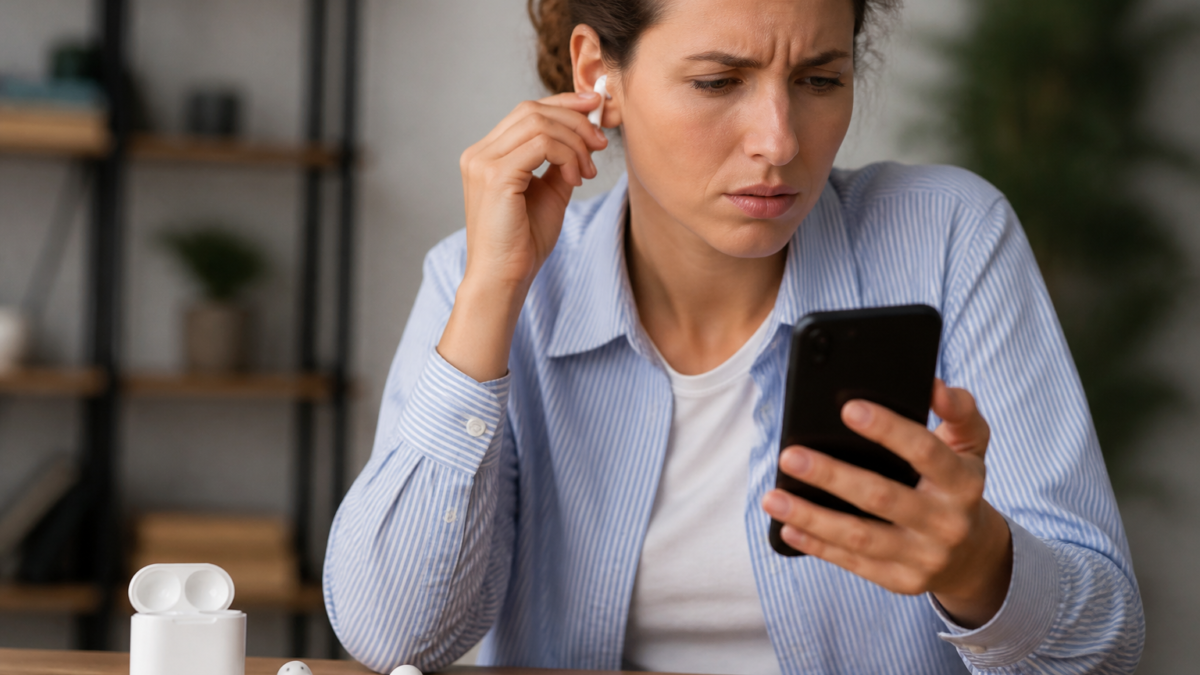
If your AirPods or Bluetooth accessory isn’t connecting to your iPhone, you’re not alone. Many users run into pairing issues—whether their AirPods aren’t detected, a Bluetooth speaker won’t show up, or sound refuses to play over the intended device. Why do these problems happen, and what’s the most reliable way to fix them? Most Bluetooth connection glitches boil down to a few root causes: the accessory isn’t in pairing mode, it’s already linked to another device, the saved connection has become corrupted, the iPhone is outputting audio somewhere else, or there’s interference. Power shortages and temporary software hiccups can also play a significant role. Thankfully, Apple recommends starting with the simplest checks to spare you unnecessary resets or device forgets.
This guide covers efficient, Apple-supported troubleshooting for the latest AirPods (including model-specific pairing steps), Bluetooth earbuds, speakers, car audio systems, and more. It reflects current iOS and Apple accessory practices as of September 2026. We’ll also address crucial nuances—such as when to use Settings instead of Control Center, how Privacy & Security permissions can get in your way, and what to do about interference or firmware updates. Whether you’re facing a one-off glitch or recurring failures, work through these steps to restore seamless Bluetooth pairing and playback.
Diagnosing Bluetooth Pairing Problems: What Do You See?
The message or absence of your accessory in Settings > Bluetooth is your fastest clue. Before diving into resets or menu changes, read the status and use it to guide your troubleshooting:
| What You See in Bluetooth | Common Explanation | Best First Action |
|---|---|---|
| No device appears at all | Accessory isn’t charged, not in discovery (pairing) mode, or out of range (over ~10 m/33 ft); significant interference nearby | Charge and power on the accessory; ensure it’s in pairing mode and close to your iPhone [source] |
| Accessory under “Other Devices” | iPhone detects the device in pairing mode but hasn’t yet paired with it | Tap its name and follow any onscreen instructions or PIN prompts [source] |
| Listed as “Not Connected” | Was previously paired but current link failed—could be off, with another device, or Bluetooth interference | Power on accessory, disconnect from others, tap its name; forget and repair if still failing [source] |
| Brief connection, then drops | Accessory low on power, out of range, interference, or corrupted previous pairing | Charge both devices, move closer, consider re-pairing [source] |
| Says Connected, but sound is on iPhone | iPhone is using a different audio destination (e.g., its own speaker, another headset, AirPlay, or CarPlay) | Select accessory manually in audio output controls [source] |
| Bluetooth is grayed out/unavailable | System-level problem, possibly after an update or hardware issue | Restart iPhone, check for updates, contact Apple if persistent [source] |
Test with a second Bluetooth accessory (if possible) to see if the issue is with your iPhone or the device. Conversely, try pairing the stubborn accessory with another phone or tablet to judge where the issue lies [source].
Step-by-Step: Fix AirPods/Bluetooth Not Connecting to iPhone
- Charge the Accessory. Accessories can sometimes power on with insufficient charge to complete pairing. Always start by charging the case, earbuds, headphones, or speaker.
- Keep Devices Within Range. Bluetooth typically works best within 10 meters (about 33 feet) with minimal physical obstructions or wireless interference [source].
- Use Settings > Bluetooth (Not Just Control Center). Fully toggle Bluetooth off/on via Settings. Control Center’s Bluetooth button only severs connections temporarily—the radio remains on for system tasks [source].
- Enable Pairing (Discovery) Mode. Most accessories require a button press or sequence to become discoverable; simply powering on is usually not enough. Check your accessory’s manual for exact steps [source].
- Disconnect Competing Devices. Turn off Bluetooth on other phones, computers, tablets, or TVs that may have previously used the accessory. Multipoint or auto-connect features often bypass the iPhone unless interrupted [source].
- Power-Cycle the Accessory. Power it down completely (or place AirPods in their case for several seconds), then restart it before retrying.
- Restart Your iPhone. Rebooting can resolve temporary software problems and clear stuck Bluetooth states without data loss [source].
- Forget and Re-Pair. If a connection remains elusive, go to Settings > Bluetooth, tap the (i) icon next to the accessory, and select Forget This Device; put the accessory in pairing mode again and try pairing afresh. Be aware: Forgetting AirPods removes them from all devices on your Apple account [source].
- Bonus: For app-controlled accessories, ensure Bluetooth permissions are enabled at Settings > Privacy & Security > Bluetooth [source].
- Check for Accessory Firmware Updates: See if your manufacturer offers firmware updates via app or support website—this can resolve persistent bugs [source].
Pairing AirPods: Model-Specific Steps
Getting AirPods (all models) into pairing mode depends on the generation, and following the right method greatly improves success rates:
- AirPods 4, AirPods Pro 3: Place AirPods in the case, open the lid, double-tap the front until status light flashes white.
- Earlier AirPods/AirPods Pro models: Open case, press and hold setup button on the back till white light flashes.
- AirPods Max: Remove from Smart Case, hold the listening-mode button for 5 seconds until white flashes.
After entering pairing mode, hold the AirPods case by your unlocked iPhone; a setup animation should appear. If not, go to Settings > Bluetooth and select them under Other Devices. Play a quick audio clip for confirmation [source].
How to Forget/Reset AirPods
- Forget: In Settings > Bluetooth, tap the info icon and choose Forget This Device—this unlinks AirPods from all iCloud-connected Apple devices [source].
- Reset Sequence for Newest Models: With the case closed for 30 seconds, open the lid. For AirPods 4/Pro 3, double-tap front (light on, white, then again when flashing, and again at rapid flashing) till amber then white.
- Older AirPods/Pro: Hold rear setup button for ~15 seconds until light flashes amber then white.
- AirPods Max: Restart: Hold Digital Crown and listening-mode until amber; reset: keep holding till white. Watch the status light to avoid doing a full reset by accident.
Connecting Other Bluetooth Accessories: Earbuds, Speakers, and Cars
- Power off and charge the third-party accessory or plug it in.
- On your iPhone, open Settings > Bluetooth.
- Follow the manufacturer’s specific instructions to enter pairing mode (often a held button or unique light sequence).
- Once the device appears under “Other Devices,” tap to initiate pairing. Supply any requested PIN from the manual.
- If a companion app is used, be sure it has Bluetooth permissions under iOS Privacy & Security. Some headsets or car kits need this for hands-free calls.
Already-paired but not reconnecting? Forget the device (info button > Forget This Device), restart, and retry from scratch. For cars, use in-dash controls to remove the iPhone AND clear the car system from the phone’s Bluetooth list. Menu locations vary, so check your car’s manual for details [source].
Fixing When Bluetooth Connects but Sound Doesn’t Play
If the accessory is listed as connected but audio is missing:
- Select output manually: Begin playback, open Control Center, expand music/call controls, and tap the AirPlay/Bluetooth icon to select your accessory.
- Raise the volume: Boost both iPhone and accessory volumes. Some speakers have independent level controls.
- Test different apps: Some apps need Bluetooth permissions, so check Settings > Privacy & Security > Bluetooth. Close and reopen problematic apps before assuming a hardware issue.
- Adjust call audio routing: Mid-call, tap “Audio” to select a device.
- Try both earbuds: Place both in the case, close briefly, reseat in ears, and retry audio.
- Reduce interference: Stay within recommended range, minimize crowding by other wireless devices, and avoid obstructions [source].
If sound fails only in a single app, update or reinstall that app after syncing your data. If it fails systemwide, continue to next-level fixes.
Updates, Restarts, and When Support Is Needed
Install iOS and Accessory Firmware Updates
Apple recommends updating your iPhone when Bluetooth or AirPods issues occur. Use Settings > General > Software Update to check for updates. Third-party accessories might have firmware updates through their manufacturer’s app or website [source]. For AirPods, firmware updates are automatic when charging in range of a Wi-Fi-connected paired device. Compare versions under Settings > Bluetooth > AirPods information > About.
Restart Without Data Loss
Restart your iPhone using the standard shutdown slider (side + volume up for Face ID models). You rarely need a forced restart unless your device is frozen [source].
Broad Resets Are Last Resort
Don’t erase your iPhone or use Reset Network Settings just because one accessory is uncooperative—this wipes Wi-Fi, VPN, and Bluetooth configurations and should only be a last step. If Bluetooth is permanently grayed out or fails on all accessories, it’s time to contact Apple [source].
Use Cross-Testing to Pinpoint Faults
- If only one accessory fails, focus on that device and its firmware/support resources.
- If nothing pairs to your iPhone but all else works elsewhere, suspect a phone-side problem.
- If an accessory won’t power on or pair with any device, check its charging and hardware.
- For persistent AirPods charging problems, don’t assume Bluetooth failure—diagnose with Apple’s cable troubleshooting steps.
Comparison Checklist: What to Try First
| Symptom | Quickest Checks | Deeper Fixes |
|---|---|---|
| Accessory not found | Charge, power on, enable pairing mode, bring close to iPhone, check range/interference | Update firmware, test with different device |
| Shows as Not Connected | Power cycle, disconnect other devices | Forget/re-pair, restart iPhone/accessory |
| Audio not routed correctly | Select output manually in Control Center, check volumes | Review app permissions/settings, restart devices |
Frequently Asked Questions
Why are my AirPods not showing up in Bluetooth settings?
The likely causes: insufficient charge, not in pairing mode, or connected elsewhere. Charge the AirPods case and earbuds, activate the correct pairing method for your model, and try again under Settings > Bluetooth > Other Devices. If the status light isn’t responding, check for a charging or case hardware problem [source].
What does “Not Connected” mean for my Bluetooth accessory?
The iPhone remembers your previous pairing, but there’s no active link—often because the accessory is off or has connected to another device. Turn it on, make it discoverable if needed, and tap the name on your iPhone. If this fails, forget and re-pair [source].
Why are my AirPods “Connected” yet no audio plays?
Audio may be playing elsewhere—iPhone speaker, another device, AirPlay, etc. In Control Center, select the AirPods under the active audio output, and increase the volume. For calls, tap the “Audio” selector during the call. Test other apps and re-seat both AirPods if one isn’t working [source].
Does forgetting AirPods remove them from all my devices?
Yes. Forgetting AirPods on your iPhone removes them from every Apple device signed in to your Apple ID (with Handoff/iCloud sync). You’ll need to re-pair them where needed [source].
Is it wise to reset network settings to fix Bluetooth on iPhone?
Only as a last resort. Resetting network settings wipes all Bluetooth, Wi-Fi, VPN, and APN data. Try all less-invasive resets first (Accessory/iPhone/software), and contact Apple support if Bluetooth is grayed out or universally unresponsive [source].
Can low battery cause Bluetooth dropouts or pairing failure?
Absolutely. Accessories may power on without enough charge for stable pairing or playback. Always charge fully, confirm contacts (for AirPods), and use a known-good charger if charging is slow or incomplete [source].
Should I check app Bluetooth permissions if my accessory only fails in one app?
Yes. Newer iOS versions let users selectively approve/disallow Bluetooth access for apps. Go to Settings > Privacy & Security > Bluetooth and ensure your app is allowed to use Bluetooth [source].
Conclusion
When AirPods or Bluetooth devices won’t connect to your iPhone, start with the basics: charge up, check proximity, initiate pairing mode, and confirm no other device is currently linked. Use Settings > Bluetooth to manage connections, not just Control Center. For persisted failures, re-pair or update the device firmware, and don’t forget to check your app permissions if only one app is affected. AirPods users must follow model-specific steps for pairing and resetting—with new generations often using different buttons or tap gestures.
Broad system resets are rarely necessary and should only be considered at Apple’s suggestion. Cross-test with other accessories or devices to isolate the fault before assuming your phone or AirPods need hardware service. Persistent trouble—such as grayed-out Bluetooth, or no connections working after all updates—warrants a visit to Apple Support. With these targeted, Apple-backed troubleshooting tips, most Bluetooth pairing woes can be quickly resolved.







Leave a Reply