
Understanding Common iPhone Display Issues
The iPhone’s display is the primary means of interaction—any disruption can quickly become frustrating. Display problems such as flickering, unresponsive touch, odd color shifts, and visible lines or tint can result from a mix of hardware, software, or settings-related causes. This comprehensive guide demystifies these issues by pinpointing root causes and offering up-to-date, practical fixes drawn from Apple’s 2026 documentation and user experiences. Whether you’re seeing erratic color changes, ghost touches, or a screen that won’t respond, you’ll find actionable steps here to help recover your iPhone’s display performance and understand when it’s time for professional help. Along the way, you’ll also learn about emerging issues like PWM (pulse-width modulation) flicker in low-light modes, feature trade-offs unique to recent iPhone models, and the critical importance of using genuine parts to maintain display quality.
Major iPhone Display Symptoms and Their Causes
- Screen Flickering or Flashing: Often linked to software glitches, adaptive brightness features, hardware faults, or exposure to non-genuine replacement parts. Flicker may intensify at low brightness and is more noticeable on some iPhones lacking recent display smoothing features.[1][2]
- Unresponsive Touch or Dead Zones: May indicate temporary software instability, screen contamination/moisture, or more serious hardware connector failures.[1]
- Color Distortions and Tints: Can be triggered by Night Shift or True Tone settings, calibration drift after repairs, or use of non-genuine displays. Recent user reports also highlight uneven tints on the latest iPhones—often as warmer or cooler gradients.[3][4]
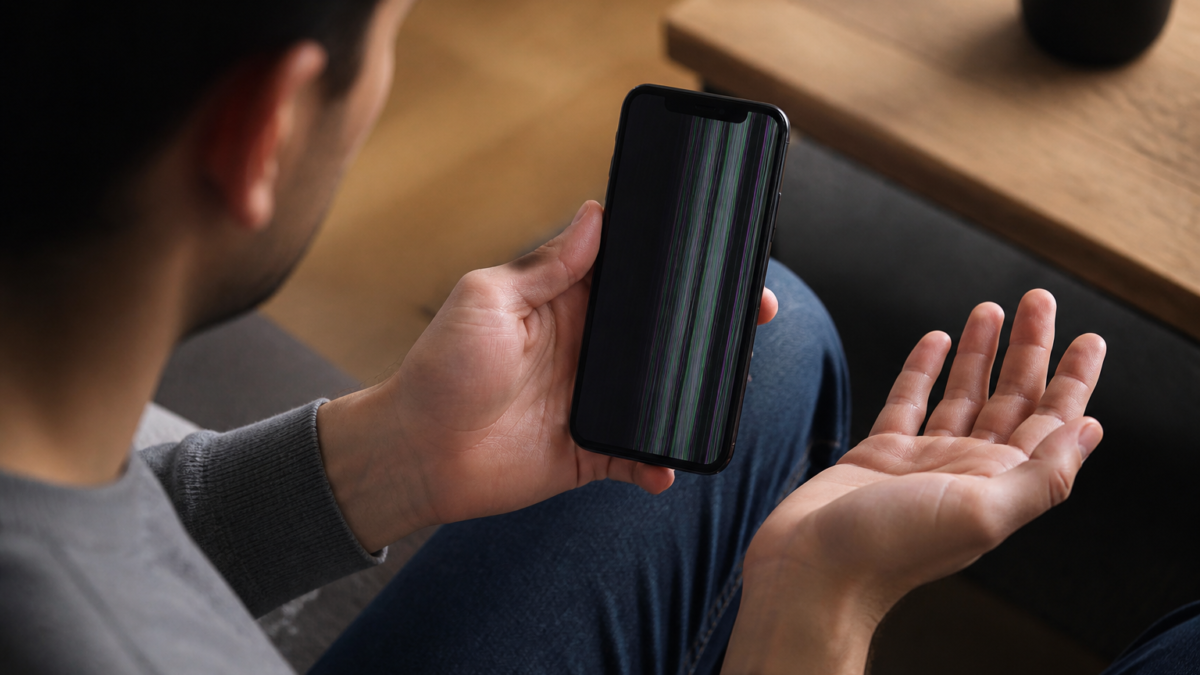
- Vertical or Horizontal Lines: Strongly suggest hardware faults—usually display panel or connector issues.[2]
Step-by-Step Troubleshooting for iPhone Display Issues
- Restart Your iPhone: Temporary glitches may be cleared by a restart. On Face ID models, quickly press and release the Volume Up, then Volume Down, then hold the Side button until the Apple logo appears.[5]
- Update iOS: Install the latest software via Settings → General → Software Update. Many display issues are resolved in iOS patches.[2]
- Adjust Display Settings: Go to Settings → Display & Brightness. Toggle True Tone, Night Shift, and Auto-Brightness to check if adaptive features are the cause of color shifts or flicker. Disable them temporarily for diagnostic purposes.[3]
- Inspect for Physical or Water Damage: Look for cracks, moisture, or visible screen separation. Damage to connectors or the internal display can manifest as lines or dead spots.[6]
- Reset All Settings: Does not erase your data, but restores all preferences to default—useful if misconfiguration is suspected. Go to Settings → General → Transfer or Reset iPhone → Reset → Reset All Settings.
- Test in Safe Mode (if possible): Remove cases/screen protectors and test bare device. Some third-party accessories can interfere with touch or color rendering.
- Check for Non-Genuine Parts: Post-repair display issues often relate to unofficial replacement parts, leading to lost features (e.g., True Tone), abnormal hues, or flicker.[6]
Comparison Table: Do-It-Yourself vs. Professional Repair
| DIY Approach | Apple-Authorized Repair |
|---|---|
| Lower cost but risk of voiding warranty; may lose features (True Tone/Night Shift) | Preserves warranty and device features; uses genuine parts with full calibration |
| High risk of further damage or miscalibration | Repairs tracked in Apple system for continued support |
| Display color and touch may not match factory standards | Restores full color accuracy and touch response |
Special Cases: Emerging Display Issues on Recent iPhone Models
Owners of iPhone 16 Pro, 17, and later models increasingly report color hue gradients (such as a warm tint at the top and cool at the bottom), especially with True Tone and Night Shift enabled. Apple’s diagnostic tests may not show faults for these, often classifying them as normal variation.[4][7] For those sensitive to flicker, iPhone 17 and newer have added “Display Pulse Smoothing” to mitigate PWM-related flicker at low brightness. Earlier devices may present visible flicker that cannot be eliminated through software unless you disable adaptive features or increase screen brightness.[8]
Checklist: Diagnosing and Fixing Your iPhone Display
- Restart the iPhone (forced or regular, depending on model)
- Update to the latest iOS version
- Toggle Night Shift, True Tone, and Auto-Brightness off/on
- Inspect for visible damage or signs of prior repair
- Remove any screen protectors/cases and test again
- Reset All Settings if misconfiguration is suspected
- Note any unique color gradient or persistent flicker and seek model-specific guidance
- If unresolved, contact Apple Support or visit an Apple Authorized Service Provider
Cost Considerations and Warranty Impact
If your iPhone requires repair, the cost and available solutions depend on warranty status, device age, and repair location. While Apple’s Self Service Repair program offers genuine parts for DIY users, these repairs may prove challenging and any mistakes or use of non-genuine parts can void warranty.[6] Apple-authorized repairs—though generally more expensive—assure display color accuracy, touch sensitivity and, since 2024, the visibility of all adaptive features.
Frequently Asked Questions (FAQs)
What should I do if my iPhone screen starts flickering?
First, restart your iPhone and check for iOS updates. Try toggling off adaptive display features (Night Shift, True Tone, and Auto-Brightness). If flickering continues, it may suggest a deeper hardware issue—especially if vertical/horizontal lines appear.[2]
Why is my iPhone touch screen unresponsive in parts?
An unresponsive area can result from temporary software instability or, more commonly, physical or water damage to the panel or connector. Remove any case or protector, restart, and ensure the screen is clean. If the problem persists, professional assessment may be needed.[1]
How do I fix unnatural color tones or tints on my display?
Go to Settings → Display & Brightness and toggle True Tone and Night Shift. Try adjusting brightness—uneven tints may be more visible at low brightness. Post-repair color distortions can signal non-genuine parts.[3]
What does “Display Pulse Smoothing” do, and does my iPhone have it?
This feature, exclusive to the iPhone 17 series and later, reduces PWM (pulse-width modulation) flicker at low brightness, helping those sensitive to display flickering. Earlier models do not include this and may be more likely to flicker in dim light.[8]
Will resetting all settings on my iPhone erase my photos and data?
No. This action only restores iOS preferences (like Wi-Fi configurations and display settings) to defaults. Personal data—photos, messages, and apps—remains intact.
How can I tell if my display issue is due to a hardware failure?
Persistent screen flicker, lines at startup, or a completely unresponsive display after all troubleshooting almost always means hardware failure, often of the display panel or connector.[2]
When should I contact Apple Support for a display issue?
If you see recurring problems despite following troubleshooting steps, notice cracks or water exposure, or suspect your iPhone uses a non-genuine screen, reach out to Apple Support or an authorized repair provider.[1]
Conclusion: Getting the Most from Your iPhone Display
Staying informed about iPhone display behaviors—including new color and flicker issues reported by the community—can help you react quickly to odd symptoms. Most display problems are solvable through careful troubleshooting: simple software fixes resolve many, while genuine hardware repairs ensure long-term performance and retain features like color accuracy and adaptive display functions. Always weigh the costs and risks of DIY repair against professional, warranty-backed solutions.[6] For persistent or hardware-linked problems, contacting Apple Support is your most reliable step to restore your iPhone to full functionality.
Editorial note: This guide is based on Apple’s official documentation, current user reports, and verified support discussions as of September 24, 2026. For model-specific advice, always reference Apple’s current support pages or authorized providers.




Leave a Reply