
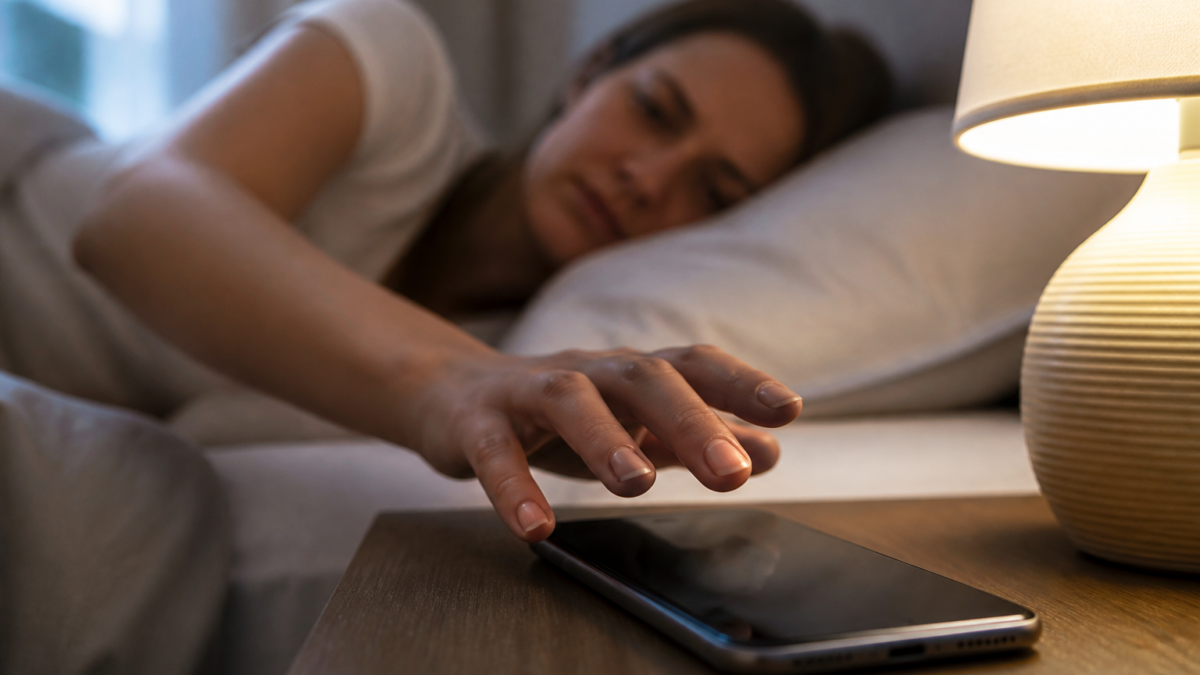
Understanding the Alarm Volume Issue
For years, iPhone users have faced a common frustration: the alarm volume was directly tied to the ringer volume. This meant that if you silenced your phone for the night, your alarm would also be silenced, leading to missed wake-up calls and important reminders. With the release of iOS 27, Apple has addressed this issue, allowing users to manage alarm volume separately from ringer volume.
Why This Change Matters
The new feature is a game-changer for those who prefer a quiet phone at night but still want to ensure they wake up on time. By un-linking these two settings, users can customize their experience based on personal preferences and needs.
How to Set a Separate Alarm Volume
To take advantage of this new feature, follow these simple steps:
- Open the Settings app on your iPhone.
- Tap on Sounds & Haptics.
- Locate the Alarms and Timers section.
- Toggle off the Match Ringtone Volume option.
- A dedicated slider will appear; adjust this slider to set your desired alarm volume.
Once you’ve completed these steps, your alarm will sound at the volume you’ve set, regardless of the ringer volume.
Understanding the Trade-offs
While this feature offers greater flexibility, there are a few considerations to keep in mind:
- Individual Alarm Settings: Alarms that have their own volume control, such as those set in your Sleep schedule, will retain the volume level you set for them individually.
- Reverting Changes: If you prefer the old behavior, you can easily revert to the previous setting by toggling the Match Ringtone Volume back on.
Additional Volume Controls
In addition to the alarm volume settings, iOS 27 introduces a second toggle for alerts and system sounds. This allows users to manage notifications, keyboard clicks, and other sounds independently from both the ringer and alarm volumes. To adjust this setting, follow the same steps as above but focus on the section below Alarms and Timers.
When to Contact Apple Support
If you encounter issues with these settings not functioning as expected, consider the following:
- Ensure your iPhone is updated to the latest version of iOS 27, as bugs may exist in earlier beta versions.
- Restart your device to rule out temporary glitches.
- If problems persist, check Apple’s official documentation or contact Apple Support for further assistance.
Conclusion
The ability to manage alarm volume independently from ringer volume in iOS 27 is a welcome enhancement for many iPhone users. By following the steps outlined above, you can customize your alarm settings to fit your lifestyle, ensuring you wake up on time without compromising your peace at night.
Frequently Asked Questions
Can I revert to the old alarm volume settings?
Yes, you can revert to the old behavior by toggling the Match Ringtone Volume option back on in the Settings.
Will my existing alarms be affected by this change?
Existing alarms will retain their individually set volumes even after you toggle off the Match Ringtone Volume option.
What if my alarm still doesn’t sound even after adjusting the volume?
Ensure your iPhone is updated to the latest iOS version, restart your device, and check your alarm settings. If issues persist, consider contacting Apple Support.
Can I adjust the volume for notifications separately?
Yes, iOS 27 allows you to manage alert and system sound volumes independently through a separate toggle in the Sounds & Haptics settings.
Is this feature available on all iPhones?
This feature is available on iPhones running iOS 27 and later. Check your device compatibility and update if necessary.
Editorial note: This guide was independently prepared from publicly available reporting and should be checked against Apple’s current support documentation. Original report: www.macrumors.com.
Featured image: alarm clock, grass, red, vintage, time, nature, autumn, outdoor, morning, timer, wake-up clock, retro style, details, sound, clock, mechanical, vinyl, yet, standing, outside, decoration by Alexas_Fotos (Pixabay Content License).






Leave a Reply