

Why iPhone apps freeze
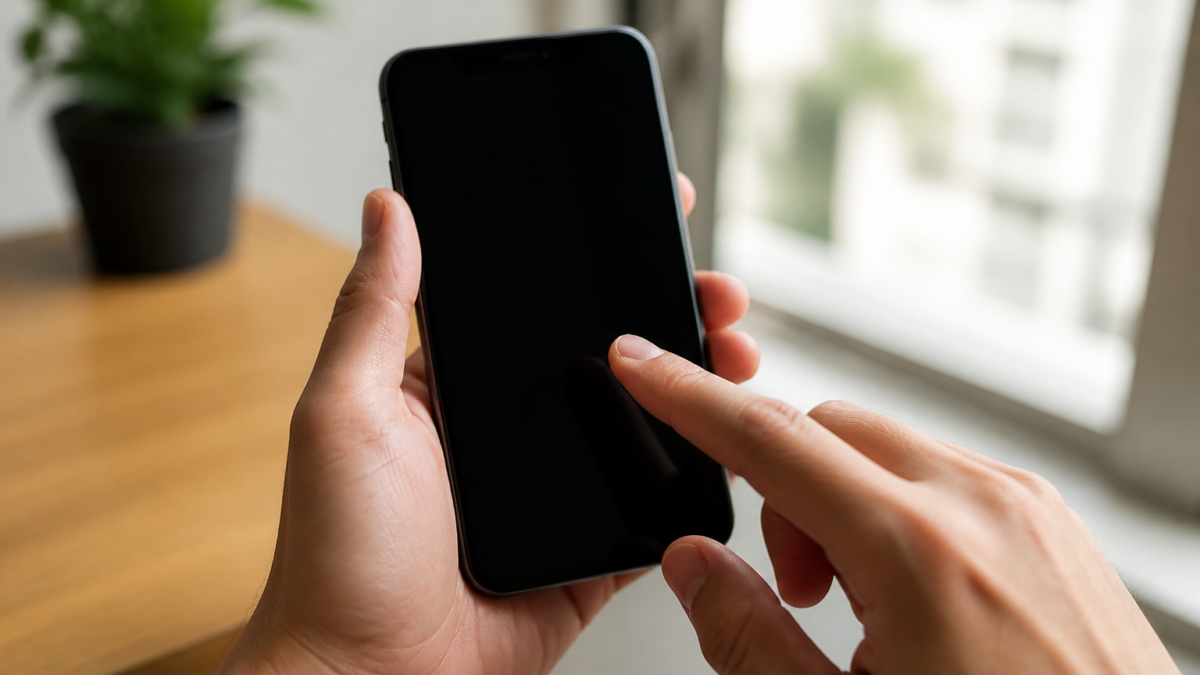
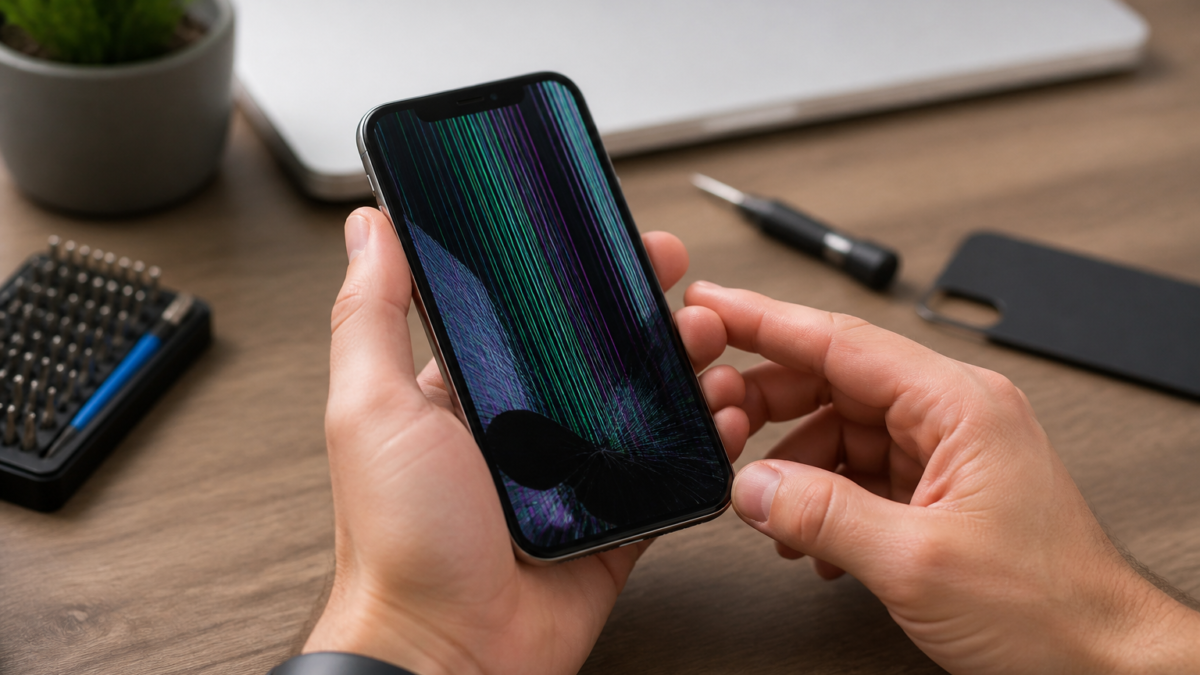
When an app freezes on an iPhone, it usually means the app has stopped responding, closed unexpectedly, or won’t open properly. In many cases, the issue is temporary and can be fixed with a few basic steps. Apple’s guidance for unresponsive apps starts with force closing the app, restarting the device, checking for updates, and reinstalling the app if needed. ([support.apple.com](https://support.apple.com/en-ca/119876?utm_source=openai))
This guide is for everyday iPhone users who want a safe, practical fix before escalating to the app developer or Apple Support. It focuses on the most common causes: a buggy app version, an iOS software issue, low storage, network problems, or a temporary system hang. Apple also notes that some apps rely on the internet, so slow or unstable connectivity can make an app seem frozen even when the app itself is working. ([support.apple.com](https://support.apple.com/en-la/102598?utm_source=openai))
What to try first
1. Force close the app, then reopen it. Apple recommends closing the app from the app switcher and reopening it to see whether it starts responding again. On iPhone X and later, swipe up from the bottom to the middle of the screen and hold to open the app switcher, then swipe the app up to close it. On older iPhones with a Home button, double-click Home, then swipe the app away. ([support.apple.com](https://support.apple.com/en-mide/guide/iphone/iph83bfec492/ios?utm_source=openai))
2. Restart your iPhone. A restart clears temporary glitches that can leave an app stuck. If the app still freezes after you relaunch it, restart the iPhone and try again. Apple’s support pages list restarting as the next step after closing the app. ([support.apple.com](https://support.apple.com/en-ca/119876?utm_source=openai))
3. Check for app updates and iOS updates. Open the App Store and look for updates. If the app itself has no update available, Apple says to update the iPhone software next. Outdated app or system software is a common reason an app becomes unstable after a change in iOS or the app’s code. ([support.apple.com](https://support.apple.com/en-ca/119876?utm_source=openai))
If the problem keeps coming back
4. Check your internet connection. If the frozen behavior happens mainly in a social, streaming, shopping, or banking app, weak Wi-Fi or cellular data can be part of the problem. Apple advises checking network conditions because some apps need a reliable connection to load content or complete requests. Try switching between Wi-Fi and cellular data, or move to a stronger signal if possible. ([support.apple.com](https://support.apple.com/en-la/102598?utm_source=openai))
5. Free up storage. Low storage can make an iPhone feel slow and can contribute to app issues. Apple’s “running slow” guidance includes checking available storage as a troubleshooting step. If your iPhone is nearly full, delete unused apps, large videos, or old downloads before testing the frozen app again. ([support.apple.com](https://support.apple.com/en-la/102598?utm_source=openai))
6. Delete and redownload the app. This can fix damaged app data or a bad install. Apple warns that deleting an app may remove data stored inside the app, so only use this step if you understand the risk and the app’s data is backed up or synced elsewhere. For many apps, this is the most effective next step after updates and a restart. ([support.apple.com](https://support.apple.com/en-ca/119876?utm_source=openai))
Good and bad sides of each fix
- Force close and reopen: Fast and low risk, but it may only solve a temporary glitch. ([support.apple.com](https://support.apple.com/en-mide/guide/iphone/iph83bfec492/ios?utm_source=openai))
- Restart iPhone: Still low risk and often helpful, but it interrupts whatever you were doing. ([support.apple.com](https://support.apple.com/en-ca/119876?utm_source=openai))
- Update app or iOS: Best for known bugs, but updates can take time and require Wi-Fi or battery power. ([support.apple.com](https://support.apple.com/en-ca/119876?utm_source=openai))
- Delete and redownload: Often effective, but it may remove locally stored app data. ([support.apple.com](https://support.apple.com/en-ca/119876?utm_source=openai))
When to contact support
If only one app freezes, and the basic steps do not help, Apple says to contact the app developer. If you bought the app recently and no longer want it, you may also request a refund. If many apps freeze, or the iPhone itself becomes sluggish or unresponsive, the issue may be broader than one app and may need deeper device troubleshooting. ([support.apple.com](https://support.apple.com/en-ca/119876?utm_source=openai))
Who this advice is for
This guidance is for iPhone owners who want a safe first pass at fixing app freezes without wiping the phone or making complicated changes. It is also useful for people who rely on one critical app, such as messaging, banking, navigation, or work tools, and need a quick decision path before escalating. If the app contains important local data, pay special attention before deleting it. ([support.apple.com](https://support.apple.com/en-ca/119876?utm_source=openai))
Concise decision checklist
- Did the app stop responding only once? Try force closing it and reopening it. ([support.apple.com](https://support.apple.com/en-mide/guide/iphone/iph83bfec492/ios?utm_source=openai))
- Did that fail? Restart the iPhone. ([support.apple.com](https://support.apple.com/en-ca/119876?utm_source=openai))
- Are app and iOS updates available? Install them. ([support.apple.com](https://support.apple.com/en-ca/119876?utm_source=openai))
- Is the problem tied to loading content or login? Check Wi-Fi or cellular data. ([support.apple.com](https://support.apple.com/en-la/102598?utm_source=openai))
- Is storage nearly full? Free space and test again. ([support.apple.com](https://support.apple.com/en-la/102598?utm_source=openai))
- Still frozen? Consider deleting and redownloading the app, but only after warning yourself about possible data loss. ([support.apple.com](https://support.apple.com/en-ca/119876?utm_source=openai))
- Still broken after reinstall? Contact the developer or Apple Support. ([support.apple.com](https://support.apple.com/en-ca/119876?utm_source=openai))
Bottom line
Most iPhone app freezes are fixable without advanced steps. Start with the least disruptive options: close the app, restart the phone, and install updates. If the app keeps freezing, look at storage and network conditions, then reinstall the app if you can afford the data-loss risk. Apple’s recommended path is simple for a reason: it solves many app problems without needing a reset or a trip to the repair shop. ([support.apple.com](https://support.apple.com/en-ca/119876?utm_source=openai))
Frequently Asked Questions
FAQ
Why do apps freeze on iPhone?
Common reasons include a temporary app glitch, an outdated app version, an iOS software issue, weak internet, or low storage. Apple’s support guidance points to these areas first when an app stops responding. ([support.apple.com](https://support.apple.com/en-ca/119876?utm_source=openai))
Should I force close frozen apps often?
Force closing is a good first fix for a stuck app, but Apple notes that quitting apps unnecessarily can make them take longer to reload data when reopened. Use it as a troubleshooting step, not as a habit. ([support.apple.com](https://support.apple.com/en-la/102598?utm_source=openai))
Will deleting the app erase my data?
It can. Apple warns that deleting an app may remove data stored inside the app. If the app does not sync to an account or cloud service, back up or confirm the data is safe before deleting it. ([support.apple.com](https://support.apple.com/en-ca/119876?utm_source=openai))
What if every app feels slow or frozen?
If multiple apps are affected, the issue may be with the iPhone itself rather than one app. Restart the device, check storage, and review network conditions. If the phone still behaves poorly, contact Apple Support. ([support.apple.com](https://support.apple.com/en-la/102598?utm_source=openai))
Sources and Further Reading
Editorial note: This article was prepared using live web research and public sources. Policies, prices, availability, health information, and platform interfaces may change. Verify important details with the relevant official source.
Featured image: Various smartphones – Android, Blackberry, Windows Phone, and iOS.jpg by Carlos Varela (CC BY 2.0).








Leave a Reply