
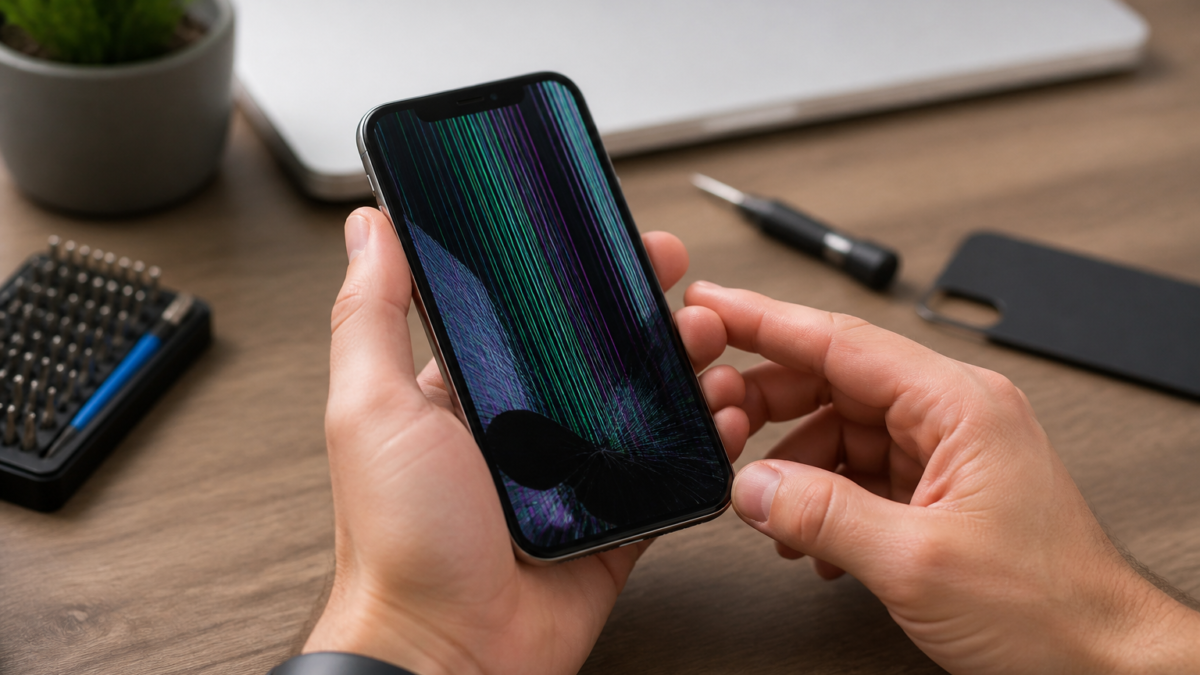
Understanding iPhone Display Issues
As iPhones evolve, so do their display technologies. However, users may encounter various display issues that can hinder their experience. Common problems include screen flickering, unresponsive touch, color distortion, and more. Understanding the potential causes of these issues is the first step toward finding a solution.
Common Causes of Display Issues
- Software Glitches: Sometimes, a simple software bug can lead to display problems. This can occur after an iOS update or when running incompatible apps.
- Hardware Damage: Physical damage from drops or water exposure can affect the display functionality.
- Settings Misconfiguration: Incorrect display settings can lead to issues like brightness problems or color distortion.
- Battery Issues: A failing battery can cause performance problems, including display issues.
Step-by-Step Fixes for iPhone Display Problems
1. Restart Your iPhone
A simple restart can resolve many temporary glitches. To restart your iPhone, press and hold the power button until you see the slider. Slide to power off, then turn it back on after a few seconds.
2. Update iOS
Ensure your iPhone is running the latest version of iOS. Go to Settings > General > Software Update to check for updates. Installing the latest software can fix bugs that may affect display performance.
3. Check Display Settings
Navigate to Settings > Display & Brightness to adjust brightness and color settings. Ensure that features like Night Shift or True Tone are configured correctly.
4. Reset All Settings
If the problem persists, consider resetting all settings. This will not delete your data but will reset system settings. Go to Settings > General > Transfer or Reset iPhone > Reset > Reset All Settings.
5. Check for Hardware Damage
Inspect your device for any visible signs of damage. If you suspect hardware issues, avoid further use and proceed to the next step.
6. Contact Apple Support
If none of the above solutions work, it may be time to contact Apple Support. They can assist with diagnosing hardware issues and provide repair options.
Trade-Offs and Considerations
While many display issues can be resolved through software fixes, hardware problems often require professional assistance. Attempting to fix hardware issues yourself can void warranties or cause further damage. Always weigh the risks before proceeding with repairs.
When to Seek Professional Help
If your iPhone continues to experience display problems after trying the above fixes, or if you notice signs of physical damage, contacting Apple Support is advisable. They can provide expert guidance and repair services to restore your device’s functionality.
Checklist for Troubleshooting iPhone Display Issues
- Restart your iPhone.
- Check for iOS updates.
- Adjust display settings.
- Reset all settings if necessary.
- Inspect for physical damage.
- Contact Apple Support if issues persist.
Frequently Asked Questions
What should I do if my iPhone screen is flickering?
Try restarting your iPhone and checking for software updates. If the issue persists, reset all settings or contact Apple Support.
How can I fix an unresponsive touch screen on my iPhone?
Restart your device and ensure it is updated to the latest iOS version. If the problem continues, check for hardware damage and consider professional help.
What causes color distortion on my iPhone display?
Color distortion can be caused by software glitches or incorrect display settings. Adjust your settings and update your iPhone to resolve the issue.
When should I contact Apple Support for display issues?
If troubleshooting steps do not resolve your display problems, or if you notice physical damage, it’s best to contact Apple Support for assistance.
Can I fix hardware issues with my iPhone display myself?
It’s not recommended to attempt hardware repairs on your own, as this can void warranties and cause further damage. Seek professional help instead.
Editorial note: This guide was independently prepared from publicly available reporting and should be checked against Apple’s current support documentation. Original report: www.macrumors.com.
Featured image: peacock, blue, nature, feathers, bird, wildlife, natural beauty, birdwatching, ornithology, beauty, detail, green leaves, display, vibrant colors, landscape, environment, natural habitat, fauna, sanctuary by Wolf69w (Pixabay Content License).







Leave a Reply