

When an iPhone app freezes
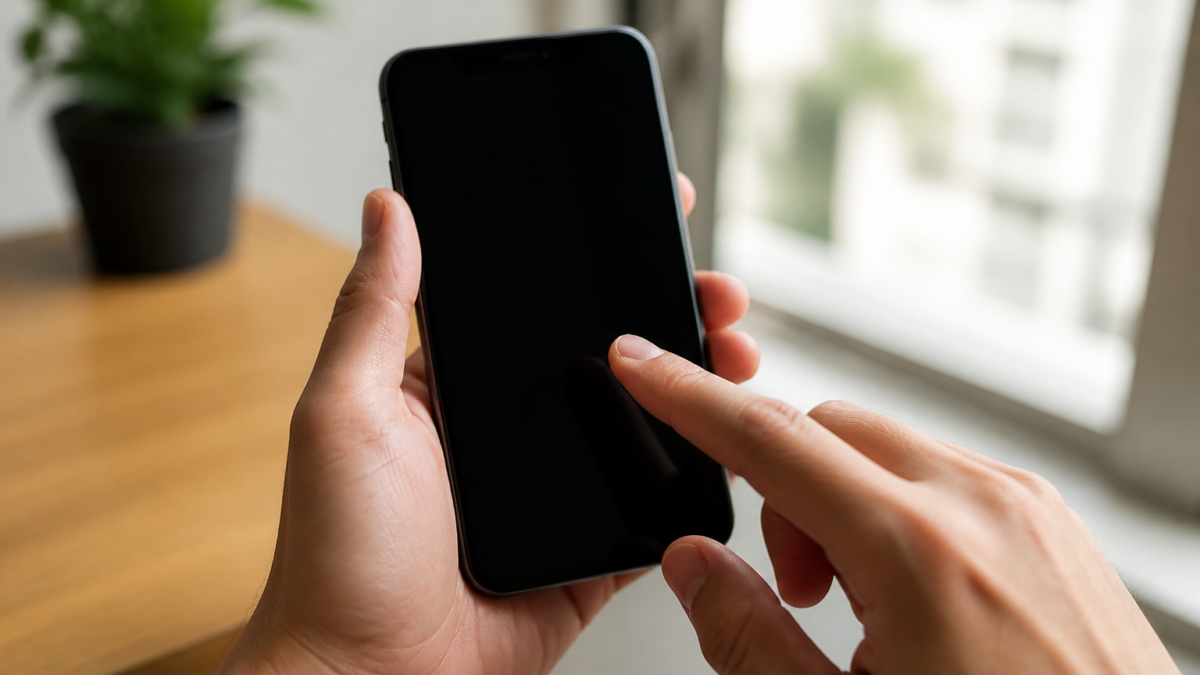
If an iPhone app stops responding, the problem is usually limited to that app, not the whole phone. Apple’s current guidance is straightforward: close the app, reopen it, then restart the iPhone if needed. If that still does not work, check for updates to the app and iPhone software. ([support.apple.com](https://support.apple.com/en-mide/guide/iphone/iph83bfec492/ios?utm_source=openai))
This guide is for everyday iPhone users who want the safest, quickest fixes first. It focuses on common troubleshooting steps that are low-risk before you consider deleting the app or more disruptive device actions. ([support.apple.com](https://support.apple.com/en-ca/119876?utm_source=openai))
What to do first
- Force close the app. If the app is frozen, open the App Switcher, find the app, and swipe it away. Apple says to close an app only when it is unresponsive. ([support.apple.com](https://support.apple.com/en-asia/109359?utm_source=openai))
- Reopen the app. Go back to the Home Screen or App Library and tap the app again. ([support.apple.com](https://support.apple.com/en-mide/guide/iphone/iph83bfec492/ios?utm_source=openai))
- Restart your iPhone. If quitting and reopening does not help, restart the device and try the app again. ([support.apple.com](https://support.apple.com/en-mide/guide/iphone/iph83bfec492/ios?utm_source=openai))
How to close a frozen app on iPhone
The exact steps depend on your iPhone model. Apple’s instructions are simple:
- iPhone X and later: swipe up from the bottom of the screen and pause, then swipe up on the app preview to close it. ([support.apple.com](https://support.apple.com/en-asia/109359?utm_source=openai))
- iPhone SE, iPhone 8, and earlier: double-click the Home button, then swipe up on the app preview. ([support.apple.com](https://support.apple.com/en-asia/109359?utm_source=openai))
Closing a stuck app is useful because it can clear a temporary glitch. The downside is that any unsaved work inside that app may be lost, so only do this when the app is not responding. ([support.apple.com](https://support.apple.com/en-asia/109359?utm_source=openai))
When a restart is the better next step
If the app keeps freezing after you reopen it, restarting the iPhone can clear short-lived system issues and refresh background processes. Apple recommends restarting after closing the app if the problem continues. ([support.apple.com](https://support.apple.com/en-mide/guide/iphone/iph83bfec492/ios?utm_source=openai))
For many models, you can restart normally by holding the side button and a volume button until the power slider appears, then sliding to power off and turning the phone back on. If the iPhone is fully unresponsive, Apple says to use a force restart instead. ([support.apple.com](https://support.apple.com/en-lamr/118259?utm_source=openai))
Force restart only if the iPhone is frozen
A force restart is not the same as a normal restart. Apple uses it when the iPhone itself is not responding and you cannot turn it off normally. For iPhone 8 and later, Apple’s method is press and quickly release volume up, press and quickly release volume down, then press and hold the side button until you see the Apple logo. ([support.apple.com](https://support.apple.com/en-lamr/guide/iphone/iph8903c3ee6/ios?utm_source=openai))
This is safe as a troubleshooting step, but use it only when needed. It may interrupt whatever the phone was doing, so start with a normal app close and restart first if the rest of iPhone is still working. ([support.apple.com](https://support.apple.com/en-lamr/guide/iphone/iph8903c3ee6/ios?utm_source=openai))
Check for updates before you delete anything
If the app still freezes, look for updates in the App Store, then check whether your iPhone software is up to date. Apple says to update the app first when possible; if no app update is available, update iPhone software. ([support.apple.com](https://support.apple.com/en-ca/119876?utm_source=openai))
This matters because some freezing issues come from bugs in the app version or incompatibilities after an iOS update. Updating is usually lower risk than deleting and reinstalling the app. ([support.apple.com](https://support.apple.com/en-ca/119876?utm_source=openai))
Last-resort option: delete and reinstall the app
If the app still will not behave normally, Apple suggests deleting the app and redownloading it. However, Apple warns that you might lose data stored only inside the app when you delete it. That makes this a reasonable final step, not the first thing to try. ([support.apple.com](https://support.apple.com/en-ca/119876?utm_source=openai))
Before deleting, check whether the app uses cloud sync or account-based storage. If you are unsure, sign in to the app’s help pages or support channels after trying the simpler fixes above. Apple says that if the app was from the App Store and still does not work, contact the app developer. ([support.apple.com](https://support.apple.com/en-ca/119876?utm_source=openai))
Who these fixes are for
These steps are best for people who use an iPhone for daily tasks like messaging, banking, shopping, or social apps and want a safe, non-technical way to recover from a freeze. They are also useful if the app opens but becomes stuck, spins, blanks out, or ignores taps. ([support.apple.com](https://support.apple.com/en-asia/109359?utm_source=openai))
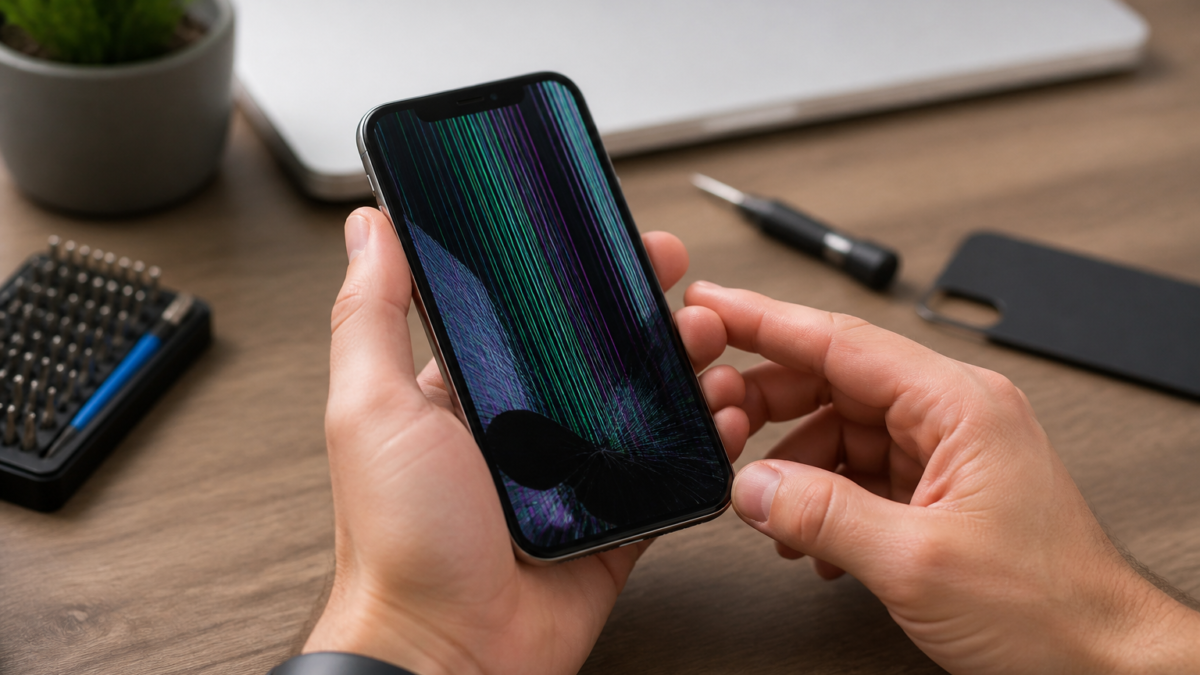
If the whole iPhone is frozen, start with a device restart or force restart rather than focusing only on the app. Apple separates app troubleshooting from device-level troubleshooting for a reason. ([support.apple.com](https://support.apple.com/en-lamr/guide/iphone/iph8903c3ee6/ios?utm_source=openai))
Practical decision checklist
- Is only one app frozen? Close and reopen the app first. ([support.apple.com](https://support.apple.com/en-asia/109359?utm_source=openai))
- Did that fail? Restart the iPhone. ([support.apple.com](https://support.apple.com/en-mide/guide/iphone/iph83bfec492/ios?utm_source=openai))
- Still happening? Check for app and iOS updates. ([support.apple.com](https://support.apple.com/en-ca/119876?utm_source=openai))
- Need a deeper fix? Delete and reinstall the app, but only after considering data loss. ([support.apple.com](https://support.apple.com/en-ca/119876?utm_source=openai))
- Is the entire phone unresponsive? Use a force restart. ([support.apple.com](https://support.apple.com/en-lamr/guide/iphone/iph8903c3ee6/ios?utm_source=openai))
Bottom line
For a frozen iPhone app, the safest path is usually: close the app, reopen it, restart the iPhone, then check for updates. If none of that works, delete and reinstall only after you understand the data-loss risk. That order gives you the best balance of speed, safety, and the chance of fixing the issue without making it worse. ([support.apple.com](https://support.apple.com/en-mide/guide/iphone/iph83bfec492/ios?utm_source=openai))
Frequently Asked Questions
FAQ
Should I always force close an app when it freezes?
No. Apple says you should close an app only if it is unresponsive or frozen. If the app is still partly working, try waiting a moment or saving your work first. ([support.apple.com](https://support.apple.com/en-asia/109359?utm_source=openai))
What if closing the app does not help?
Restart the iPhone next. If the app still freezes after a restart, check for app updates and iOS updates. ([support.apple.com](https://support.apple.com/en-mide/guide/iphone/iph83bfec492/ios?utm_source=openai))
Will deleting the app erase my data?
It can. Apple warns that deleting an app may remove data stored in that app, so use this step only after trying the safer fixes first. ([support.apple.com](https://support.apple.com/en-ca/119876?utm_source=openai))
When should I contact the app developer?
If the app came from the App Store and still will not work after closing, restarting, updating, and reinstalling, Apple says to contact the app developer. ([support.apple.com](https://support.apple.com/en-ca/119876?utm_source=openai))
Sources and Further Reading
Editorial note: This article was prepared using live web research and public sources. Policies, prices, availability, health information, and platform interfaces may change. Verify important details with the relevant official source.
Featured image: Various smartphones – Android, Blackberry, Windows Phone, and iOS.jpg by Carlos Varela (CC BY 2.0).








Leave a Reply