
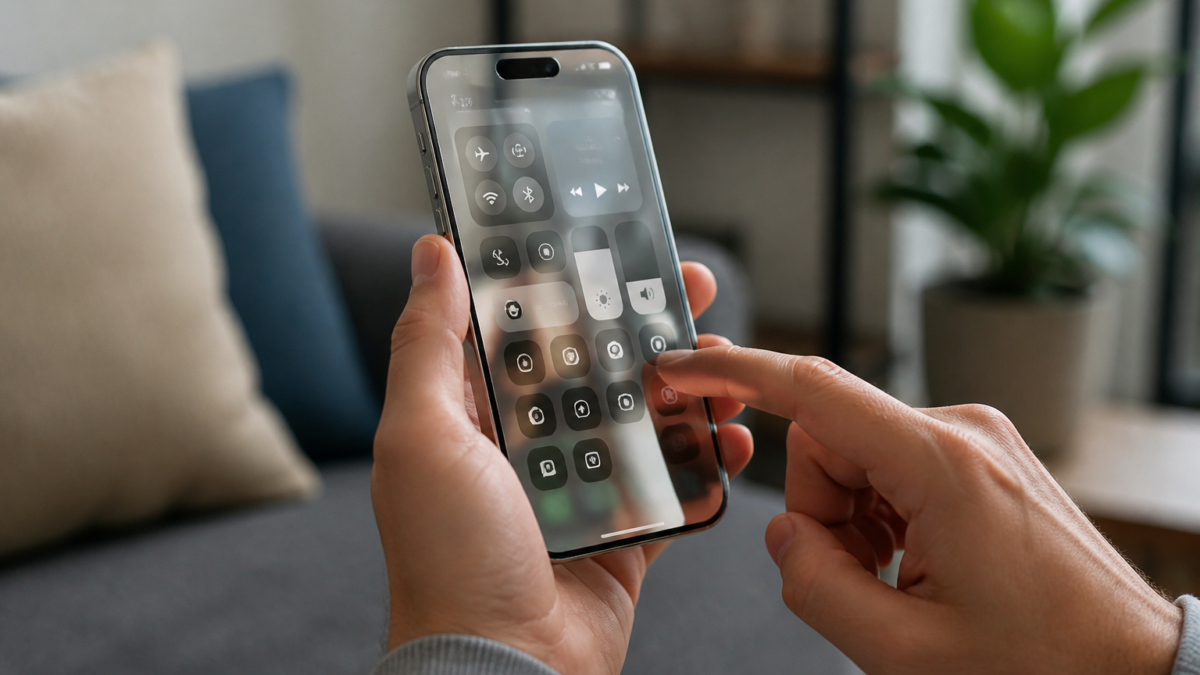
Understanding the Liquid Glass Effect
With the introduction of iOS 26, Apple unveiled the Liquid Glass interface effect, which provides a glass-like transparency to various elements on your iPhone. While many users appreciate this aesthetic, some find it distracting or difficult to read notifications and see their wallpaper. Fortunately, iOS 27 has introduced a new feature that allows users to adjust the level of translucency, giving you more control over your device’s appearance.
Identifying the Problem
If you find that the Liquid Glass effect is too overwhelming or obscures important information, you are not alone. Users have reported issues such as:
- Difficulty reading notifications due to excessive transparency.
- Wallpaper visibility issues in Control Center and other overlays.
- A general preference for a more solid interface for better clarity.
Possible Causes
The primary cause of these issues is the default settings of the Liquid Glass effect, which may not suit everyone’s preferences. Additionally, the interface may not provide enough contrast between elements, leading to a cluttered or confusing appearance.
Step-by-Step Guide to Adjusting Liquid Glass Transparency
To modify the Liquid Glass effect on your iPhone running iOS 27, follow these steps:
- Open the Settings app on your iPhone.
- Scroll down and tap on Appearance.
- Locate and tap on Liquid Glass.
- Use the slider to adjust the transparency:
- Drag left for a clearer, more transparent effect.
- Drag right to increase tint and opacity.
The midpoint on the slider represents Apple’s default setting. As you adjust the slider, the user interface preview updates in real-time, allowing you to see the changes immediately.
What to Do If the Slider Doesn’t Meet Your Needs
If you find that even the maximum tint setting does not provide the clarity you desire, consider utilizing two Accessibility options:
- Reduce Transparency: This option removes most translucency, resulting in flat, solid backgrounds.
- Increase Contrast: This setting enhances the boundaries between text, buttons, and the background, making them easier to distinguish.
To access these options:
- Go to Settings.
- Tap on Accessibility.
- Select Display & Text Size.
Pros and Cons of Adjusting Transparency
Before making adjustments, consider the following:
- Pros:
- Enhanced readability of notifications and app content.
- Improved visibility of wallpaper and backgrounds.
- Cons:
- May reduce the aesthetic appeal of the interface.
- Potentially limits the immersive experience of certain apps.
When to Contact Apple Support
If you have followed the steps above and are still experiencing issues with the Liquid Glass effect, it may be time to reach out to Apple Support. Consider contacting them if:
- The settings do not appear to change the transparency as expected.
- You encounter any glitches or bugs after updating to iOS 27.
- You have specific accessibility needs that are not being met by the current options.
Apple Support can provide further assistance and may offer solutions tailored to your individual needs.
Frequently Asked Questions
How do I access the Liquid Glass settings on my iPhone?
You can access the Liquid Glass settings by going to Settings > Appearance > Liquid Glass.
What should I do if the transparency adjustments are not enough?
If the slider adjustments do not provide the clarity you need, consider using the Reduce Transparency and Increase Contrast options found in Settings > Accessibility > Display & Text Size.
Will adjusting the Liquid Glass effect affect all apps?
Yes, the Liquid Glass setting applies system-wide, affecting all apps and interface elements on your iPhone.
Is it possible to revert to the default settings?
Yes, you can reset the slider to the midpoint to return to Apple’s default transparency settings.
When should I contact Apple Support for help?
If you experience persistent issues or bugs after adjusting the settings, it may be best to contact Apple Support for further assistance.
Editorial note: This guide was independently prepared from publicly available reporting and should be checked against Apple’s current support documentation. Original report: www.macrumors.com.
Featured image: woman, beach, glasses, sun, posing, sea, ocean, sand, bikini, nature, evening, beauty, calm, fashion, light, relax, vacation, sky, young, chill by jump1987 (Pixabay Content License).






Leave a Reply