
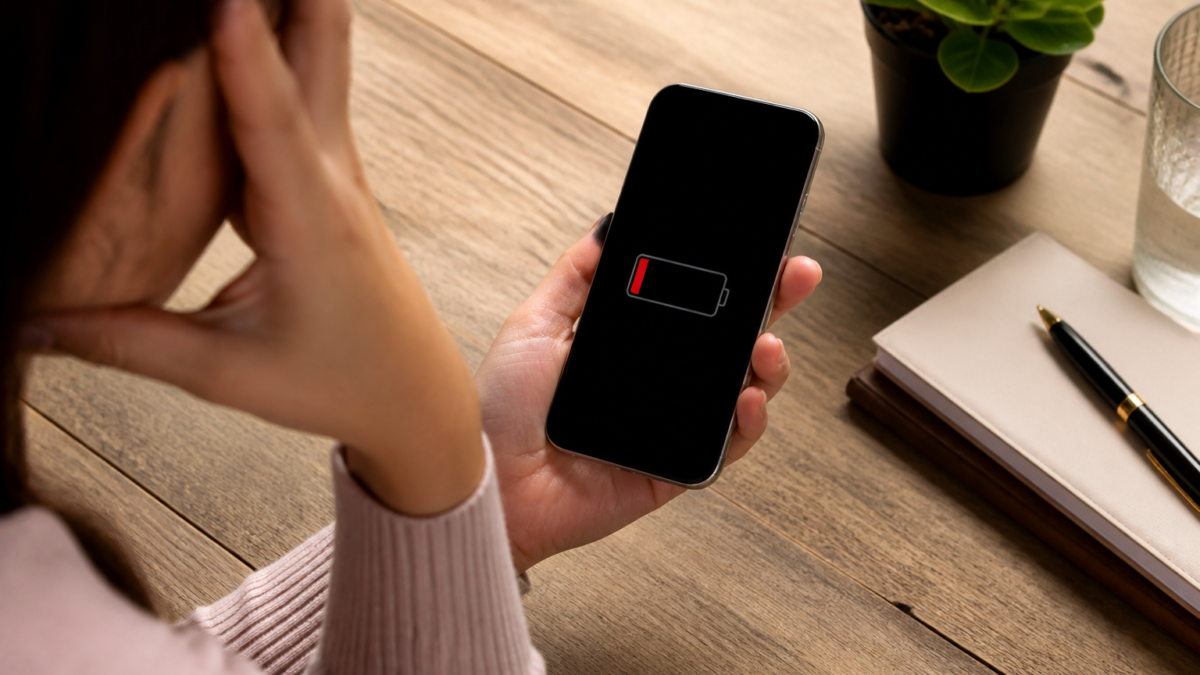
If your iPhone battery is draining fast after an update, the update itself may not be the only explanation. An iPhone can continue indexing data, analyzing photos, downloading app content, and completing setup tasks after iOS is installed. Higher screen time, weak cellular coverage, an app behaving differently, or an aging battery can produce similar symptoms.
The safest approach is to diagnose the change before disabling every feature or resetting the phone. Recent iOS versions provide Battery Insights, daily comparisons, app activity details, and battery-health information that can help separate temporary post-update activity from a persistent problem. This guide covers 10 practical fixes in a logical order, starting with steps that have little effect on your data or everyday experience. Menu names can vary slightly by iPhone model and iOS version, so use Settings search if a listed option is not where you expect it. Avoid third-party “battery repair” utilities: an App Store app cannot restore the physical capacity of a chemically aged battery.
iPhone Battery Draining Fast After Update: Why It Happens
A software update replaces or reorganizes system files, but some work continues after the installation screen disappears. Apple says Battery Insights may display Ongoing iOS Update while update-related tasks finish in the background. You may also see Ongoing Device Setup after restoring a backup or configuring a new phone. During this period, the iPhone may feel warmer and use more power than usual.
Temporary background work is only one possibility. Battery life reflects how the phone is being used, not just the installed iOS version. Common causes include:
- Longer screen-on time, high brightness, gaming, video recording, navigation, or streaming
- Photo syncing, app downloads, cloud restoration, or background media playback
- An app generating frequent notifications or remaining active in the background
- Poor Wi-Fi or cellular coverage that makes the phone work harder to maintain a connection
- Location access, live navigation, widgets, or other features used more often than before
- Heat, which can affect performance and charging behavior
- Reduced maximum capacity caused by normal battery aging
For that reason, a faster percentage drop immediately after updating does not automatically prove that iOS damaged the battery. Compare several normal days of use and look for evidence in Settings before drawing that conclusion.
Check These Details Before Changing Settings
Open Settings > Battery. On supported software, the Daily Usage area compares current consumption with your recent pattern. Tap View All Battery Usage and select a day to review screen activity, charging periods, apps, and system processes. An app near the top is not necessarily malfunctioning—it may simply be the app you used most.
| What Battery settings show | What it may mean | Best next step |
|---|---|---|
| Ongoing iOS Update or Ongoing Device Setup | Background work has not finished | Allow a few days, use Wi-Fi, and reassess after normal use |
| High On Screen activity | The display and active use explain much of the drain | Compare screen time, brightness, gaming, video, and navigation |
| High Background activity | An app is syncing, playing media, tracking location, or fetching information | Review that app’s settings and permissions |
| Many notifications | An app is repeatedly waking the display or device | Reduce alerts that are not time-sensitive |
| No Mobile Coverage or Low Signal | The phone used extra energy searching for or maintaining service | Use reliable Wi-Fi or Airplane Mode where no service is expected |
| Service beside Battery Health | The battery may no longer provide expected capacity or performance | Review official service options |
Take a screenshot of the Battery page or note the percentage used by the top apps. This creates a baseline. Change one or two relevant settings at a time and compare the next full day rather than making many changes at once.
10 Fixes to Try After an iOS Update
1. Allow Post-Update Tasks to Finish
If the update was installed recently, give the phone a few days before judging its long-term battery life. Keep it connected to a dependable Wi-Fi network when convenient so syncing, app downloads, and cloud activity can complete without relying on a weak cellular connection. Check Settings > Battery for an ongoing-update or setup Insight. Improvement after that message disappears suggests the drain was temporary.
2. Identify the App or System Activity Using Power
In Settings > Battery, tap View All Battery Usage, select a day, and inspect the app and system activity list. Tap an app for more detail. Compare its battery percentage with its on-screen and background time. A maps app used for hours of navigation has an understandable reason to rank highly; a rarely opened app with substantial background activity deserves closer attention.
Start by checking that app’s account syncing, media downloads, location permission, notifications, and in-app settings. If it also freezes or stops responding, follow this separate guide to troubleshoot an unresponsive iPhone app.
3. Update Your Apps
An iOS update can expose compatibility problems in an older version of an app. App Store downloads normally update automatically, but you can check manually. Open the App Store, tap your account picture, open the app-updates area if shown, and install available updates. Prioritize apps associated with unusual background activity, crashes, heat, or rapid drain.
If one app remains the clear cause after being updated, review its support information or temporarily remove it if you can do so without losing locally stored data. Confirm that important files, logins, or conversations are synced before deletion.
4. Restart the iPhone
A normal restart can clear a stalled process without deleting data. On most current models, press and hold a volume button and the side button until the power-off slider appears. Turn the phone off, wait about 30 seconds, and then hold the side button until the Apple logo appears. Older models may use a different button combination.
A restart is different from erasing the phone, restoring it, or using recovery mode. If the device is frozen on the Apple logo or cannot start normally, use the safer steps in this iPhone Apple logo and recovery-screen guide rather than repeatedly forcing it off.
5. Use Low Power Mode When You Need Immediate Relief
Low Power Mode reduces or pauses selected background tasks and visual effects. On iPhone 15 and later, look under Settings > Battery > Power Mode. On some earlier models or software versions, the Low Power Mode switch appears directly under Battery. The battery icon turns yellow while the mode is active.
This feature does not repair an old battery, but it can help the remaining charge last longer while you diagnose the problem. Tradeoffs may include reduced display brightness, a shorter Auto-Lock interval, paused automatic downloads, limited background refresh, and a display refresh-rate limit on ProMotion models. It normally turns off after the phone charges past 80%.
6. Consider Adaptive Power on Supported iPhones
With iOS 26 or later, certain newer iPhones support Adaptive Power under Settings > Battery > Power Mode. Apple says it can make modest performance adjustments, lower brightness slightly, limit background work, and enable Low Power Mode at 20% when higher-than-usual usage is predicted.
Adaptive Power is not available on every iPhone, and its default setting depends on the model. It also needs time to learn charging habits. Use it as an automatic conservation option, not as proof that an app or battery problem has been fixed.
7. Reduce Display Power Without Making the Screen Uncomfortable
The display can be one of the largest power users, particularly during outdoor use, gaming, video, or navigation. Lower brightness from Control Center to a comfortable level. To check Auto-Brightness, go to Settings > Accessibility > Display & Text Size and scroll to the bottom. You can also choose a practical Auto-Lock time under Settings > Display & Brightness > Auto-Lock.
Avoid reducing brightness so far that the phone becomes difficult or unsafe to read. The goal is to eliminate unnecessary brightness and idle screen time, not to make the device unpleasant to use.
8. Limit Unnecessary Background Activity and Notifications
Go to Settings > General > Background App Refresh. Instead of turning the feature off globally, disable it for apps that do not need to update before you open them. Messaging, navigation, audio, and work apps may have valid reasons to remain active, so make selective changes.
Next, review Settings > Notifications. Frequent alerts can wake the phone and encourage additional screen time. Turn off unhelpful notifications, use scheduled summaries where appropriate, or remove Lock Screen alerts while preserving essential sounds or badges. Do not disable emergency, security, medical, banking, or account alerts you rely on.
9. Review Location Access
Open Settings > Privacy & Security > Location Services. Check apps that have continuous access and decide whether While Using the App, Ask Next Time, or Never better matches their purpose. You can also disable Precise Location for an app that only needs a general area.
Do not remove location permission blindly. Navigation, emergency features, device-finding tools, weather alerts, ride services, and location-based safety apps may need it. Battery settings can help determine whether location-related background activity is actually contributing to the drain.
10. Improve Connectivity and Check for a Follow-Up Update
Apple advises using Wi-Fi when possible because it generally uses less battery than cellular data. A weak cellular signal can increase power use as the phone searches for service. If you expect to remain somewhere with no coverage for an extended period, Airplane Mode can prevent repeated network searching—but you will not receive ordinary cellular calls or messages while it is enabled.
On supported 5G models, 5G Auto can switch to LTE when 5G offers no meaningful benefit. Find it under Settings > Cellular > Cellular Data Options > Voice & Data. Finally, check Settings > General > Software Update. A later iOS maintenance release may contain relevant fixes. Back up the phone before installing another update.
How to Tell Whether the Fix Worked
Battery percentage alone is a poor comparison if your daily activity changes. A day with navigation, video calls, gaming, photography, or poor coverage cannot be compared fairly with a quiet day on Wi-Fi. Use the Daily Usage chart to compare similar days and consider:
- How long the screen was active
- Which apps were used and for how long
- Whether the phone spent time in a weak-signal area
- Whether photos, files, or apps were still syncing
- How much charge was lost while the phone was idle overnight
- Whether the phone felt unusually warm during light use
For an overnight check, note the battery percentage, disconnect unnecessary accessories, leave the phone under normal conditions, and check the result in the morning. Do not intentionally disable essential connectivity or safety features merely to produce an unrealistically low drain number. If a specific app dominates overnight usage, investigate that app first.
Also confirm that the apparent drain is not a charging problem. A damaged cable, contaminated port, weak adapter, or interrupted wireless connection can leave the phone with less charge than expected. If charging is inconsistent, review these iPhone cable and charging checks.
Check Battery Health and Know When to Seek Service
Rechargeable batteries lose capacity as they chemically age. On iPhone 15 and later, open Settings > Battery > Battery Health. On iPhone 14 and earlier, the menu may be labeled Battery Health & Charging. Review Maximum Capacity, Peak Performance Capability, and any service message.
Apple says batteries in iPhone 14 models and earlier are designed to retain 80% of original capacity after 500 complete charge cycles under ideal conditions. Batteries in iPhone 15 models and later are designed for 80% after 1,000 cycles under ideal conditions. Actual results depend on use, charging patterns, and operating conditions. A complete cycle represents cumulative use totaling 100% of the battery’s capacity; it does not have to happen in one discharge.
Maximum Capacity is useful context, but it should not be interpreted in isolation. A modestly reduced number does not identify which app consumed today’s charge, while sudden shutdowns, a Service message, severely shortened runtime, or performance limitations provide stronger reasons to request an assessment.
Contact Apple or an Apple Authorized Service Provider if Battery Health shows Service, the device shuts down unexpectedly, the battery percentage changes erratically, or heavy drain continues after several comparable days. Service price and coverage depend on the model, location, warranty status, AppleCare coverage, and inspection results. Stop using the device and seek qualified assistance if the battery appears swollen, the enclosure separates, or the phone has sustained significant physical or liquid damage.
Battery-Saving Mistakes to Avoid
- Force-closing every app: Apple recommends closing an app when it is unresponsive. Repeatedly removing every app from the App Switcher is not a reliable battery fix and forces apps to reload when reopened.
- Installing battery-booster apps: An ordinary app cannot restore physical battery capacity or repair iOS. Be cautious about apps that promise automatic battery restoration.
- Disabling everything at once: This makes the cause difficult to identify and may break notifications, syncing, navigation, accessibility, or safety features.
- Erasing the phone immediately: A factory reset is disruptive and can trigger more temporary syncing after restoration. Use it only after backing up and following appropriate support guidance.
- Ignoring heat: Apple states that using or charging an iPhone above 95°F can permanently reduce battery lifespan. Move an overheated phone out of direct sunlight and allow it to cool naturally. Do not place it in a freezer or against ice.
Frequently Asked Questions
Is battery drain normal immediately after an iOS update?
Some temporary drain can be normal because update-related processing, indexing, photo analysis, downloads, and syncing may continue in the background. Settings > Battery may show an Ongoing iOS Update Insight while this work is active. Apple recommends waiting a few days and checking again. Persistent drain without ongoing setup activity should be investigated through Battery usage, app updates, signal conditions, and Battery Health.
How many days should I wait before deciding there is a problem?
Apple’s guidance is to wait a few days rather than relying on the first several hours after installation. There is no universal completion time because the amount of stored data, cloud content, installed apps, network quality, and charging opportunities vary. If battery life remains significantly below your normal experience after several comparable days, review the Daily Usage chart and identify the apps or system tasks responsible.
Does Low Power Mode damage the battery?
No. Low Power Mode is an Apple feature designed to reduce energy consumption by limiting selected background tasks, visual effects, automatic downloads, and other functions. It may make some activities slower or temporarily pause them, but it does not damage the battery. It is useful for extending the current charge, although it cannot reverse chemical aging or replace a battery that requires service.
Should I close all open apps to stop battery drain?
No. Apps visible in the App Switcher are not necessarily running continuously. Apple advises closing an app if it is unresponsive, and its iPhone guide notes that routinely quitting apps does not save battery power. Instead, use Settings > Battery to identify an app with unusual background activity. Update, configure, or troubleshoot that specific app rather than repeatedly force-closing everything.
Will installing another iOS update fix the problem?
A later maintenance update may address software defects, security issues, or compatibility problems, but no update can guarantee better battery life for every user. Check Settings > General > Software Update for an available release and back up before installation. Remember that installing it may start another short period of background processing, so compare battery performance only after the new update has had time to finish its work.
When does an iPhone battery need replacement?
Consider an official assessment when Battery Health displays Service, runtime has become impractically short, or the phone experiences unexpected shutdowns or performance limitations. Maximum Capacity near or below 80% can indicate substantial aging, but the percentage is not the only factor. Battery condition, cycle history, symptoms, model, and diagnostic results all matter. A swollen or physically damaged battery requires prompt professional attention.
Conclusion
If your iPhone battery is draining fast after an update, begin with evidence rather than drastic changes. Check Battery Insights, compare similar days, inspect app and system activity, and allow post-update tasks time to finish. Updating apps, restarting the phone, using Low Power Mode, reducing unnecessary display or background activity, and improving network conditions can address many common causes without deleting data.
Persistent drain may have a different explanation, particularly when Battery Health shows a service warning, the phone shuts down unexpectedly, or one app continues consuming power in the background. Make selective changes and test them instead of disabling every feature at once. If the problem continues after several normal days and current software updates, back up your data and contact Apple or an authorized service provider for model-specific diagnostics and service options.






Leave a Reply