
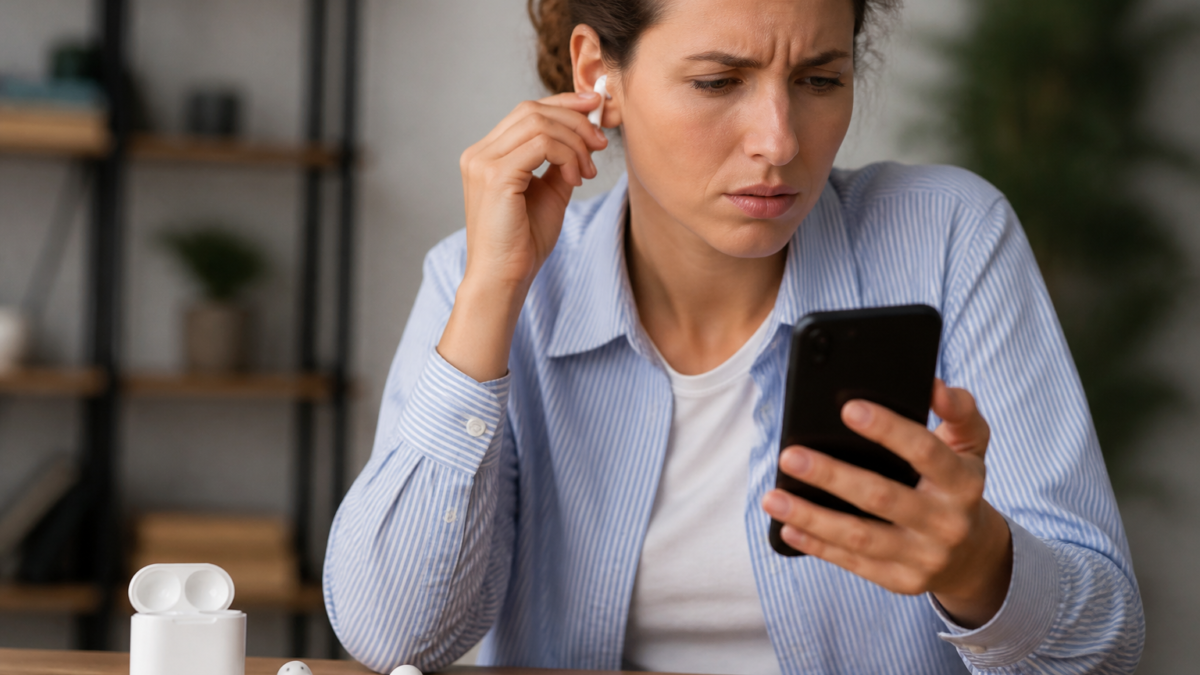
If your AirPods or Bluetooth are not connecting to an iPhone, the problem usually falls into one of four categories: the accessory is not in pairing mode, it is connecting to another device, its saved connection has become unreliable, or the iPhone is sending audio somewhere else. Low battery power and temporary software problems can also prevent a successful connection.
Start with the least disruptive checks before forgetting devices or resetting anything. Confirm that the accessory is charged, move it close to the iPhone, and open Settings > Bluetooth. If the accessory worked previously, check whether it has automatically connected to a nearby computer, tablet, television, or another phone. AirPods require slightly different pairing and reset methods depending on the model, so using the correct case controls matters. The steps below cover AirPods, AirPods Pro, AirPods Max, wireless earbuds, speakers, keyboards, car systems, and other common Bluetooth accessories. Menu names and pairing controls can vary by iPhone software version and accessory manufacturer.
Identify the Bluetooth Problem Before Changing Settings
The message shown in Bluetooth settings provides a useful starting point. Do not repeatedly tap the accessory name without first checking its power, pairing mode, and connection to other devices.
| What you see | Likely explanation | Best first action |
|---|---|---|
| The accessory never appears | It is not discoverable, is out of range, or has no power | Charge it and activate its pairing mode |
| The name appears under Other Devices | The iPhone can detect it but has not paired | Tap the name and complete any onscreen request |
| The device is listed as Not Connected | A previous pairing exists, but the current connection failed | Turn the accessory on, disconnect it from other devices, and tap its name |
| It briefly connects and disconnects | Power, distance, interference, or a damaged saved pairing may be involved | Charge both devices, move closer, and then forget and re-pair if needed |
| It says Connected, but sound uses the iPhone | The wrong audio output may be selected | Choose the accessory from the audio-output control |
| Bluetooth is unavailable or grayed out | The issue may be on the iPhone rather than one accessory | Restart, install available iOS updates, and contact Apple if it continues |
Testing a second Bluetooth accessory can quickly separate an iPhone-wide problem from a fault affecting one headset or speaker. Likewise, pairing the troublesome accessory with another compatible phone can help identify which side of the connection needs attention.
AirPods or Bluetooth Not Connecting to iPhone: Try These Steps in Order
Use this sequence from top to bottom. Test the connection after each step and stop when it works.
- Check power. Charge the AirPods case, earbuds, speaker, keyboard, or other accessory. Replace removable batteries if applicable. An accessory may light up yet still lack enough power to complete pairing reliably.
- Keep the devices close. Place the accessory beside the iPhone while pairing. After it connects, test it at your normal listening or working distance.
- Open Bluetooth in Settings. Go to Settings > Bluetooth and confirm that Bluetooth is on. For troubleshooting, use Settings rather than relying only on the Control Center button.
- Activate discovery mode. Look for a flashing status light or the pattern described in the accessory manual. Simply turning a device on does not always make it discoverable.
- Disconnect competing devices. Turn off Bluetooth temporarily on a nearby phone, tablet, computer, or television that normally uses the accessory. Some products reconnect to their last device before the iPhone can claim the connection.
- Power-cycle the accessory. Turn it completely off, wait several seconds, and turn it on again. For earbuds, returning both buds to the case and closing the lid may restart them.
- Restart the iPhone. A normal restart can clear a temporary Bluetooth or audio-routing problem without deleting data or saved settings.
- Forget and re-pair the device. Use this only after the basic checks, because it removes the saved connection and may require a PIN, companion app, or setup procedure again.
Be aware that tapping Bluetooth in Control Center normally disconnects accessories without completely disabling Bluetooth. Apple explains that Bluetooth remains available for several system features and may become active again automatically. To turn it fully off during a test, use Settings > Bluetooth.
How to Reconnect or Reset AirPods Correctly
First, place both AirPods in the charging case and verify that both are charging. Close the lid for at least 15 seconds, open it, and hold the case near the unlocked iPhone. If the AirPods appear in the iPhone’s audio-output list, select them and play a short audio clip before resetting anything.
Put AirPods into pairing mode
- AirPods 4 and AirPods Pro 3: With the AirPods inside, open the case and double-tap the front until the status light flashes white.
- Earlier AirPods and AirPods Pro models: Open the case and hold the setup button on the back until the status light flashes white.
- AirPods Max: Take them out of the Smart Case and hold the listening-mode button for about five seconds, until the light flashes white.
Keep the AirPods near the iPhone and follow the setup animation. If no animation appears, open Settings > Bluetooth and select the AirPods under Other Devices.
Forget and reset AirPods or AirPods Pro
Go to Settings > Bluetooth, tap the information button beside the AirPods, and choose Forget This Device. Forgetting AirPods also removes them from supported devices signed in to the same Apple Account, so those devices may need to reconnect afterward.
For AirPods 1, 2, or 3 and AirPods Pro 1 or 2, put the earbuds in the case, close the lid for 30 seconds, and reopen it. Hold the rear setup button for about 15 seconds, until the light flashes amber and then white.
AirPods 4 and AirPods Pro 3 use a different reset sequence. After forgetting them and waiting 30 seconds with the case closed, open the lid. Double-tap the front while the light is on, double-tap again when it flashes white, and double-tap a third time when the flashing becomes faster. The light should flash amber and then white. Apple maintains model-specific AirPods reset instructions if you need to verify the light sequence.
Restart or reset AirPods Max
Charge AirPods Max before resetting them. To restart, hold the Digital Crown and listening-mode button until the light flashes amber, then release them. A factory reset requires holding both controls for approximately 15 seconds, until the light flashes amber and then white. Because holding the controls longer changes a restart into a reset, watch the status light carefully.
Fix Other Bluetooth Earbuds, Speakers, Cars, and Accessories
Third-party devices do not share one universal pairing method. Consult the manufacturer’s manual for the exact button, hold time, light pattern, PIN, and limit on stored devices. A speaker that has reached its pairing-memory limit, for example, may require removing an older phone from the speaker itself.
- Turn off the accessory and charge it or connect it to power.
- Open Settings > Bluetooth on the iPhone.
- Follow the manufacturer’s steps to enter pairing or discovery mode.
- Wait for the name to appear under Other Devices, then tap it once.
- Enter a PIN only if the iPhone requests one and the manufacturer’s documentation supplies it.
- If the accessory has a companion app, open Settings > Privacy & Security > Bluetooth and confirm that the app has Bluetooth permission.
If the device is already saved but will not reconnect, tap the information button next to its name and select Forget This Device. Restart the accessory, return it to discovery mode, and pair from the beginning. Apple’s third-party Bluetooth pairing instructions also recommend unpairing the accessory from other devices when it works elsewhere but not with the iPhone.
Vehicle systems can require an additional deletion on the dashboard. Remove the iPhone from the car’s saved-phone list and remove the vehicle from the iPhone before pairing again. Park safely before changing dashboard settings, and use the vehicle manual because menu names vary by make, model, year, and infotainment system.
What to Do When Bluetooth Connects but Audio Does Not Work
A successful Bluetooth connection does not guarantee that the accessory is the active audio destination. The iPhone may still be using its speaker, another headset, CarPlay, an AirPlay speaker, or a previously selected device.
- Select the output manually. Start playing audio, open Control Center, expand the media controls, and use the audio-output button to select the intended AirPods, headphones, or speaker.
- Check both volume controls. Raise the iPhone volume and, if available, the accessory’s own volume. Some speakers and vehicle systems maintain a separate level.
- Test more than one app. If music works but one calling, meeting, or media app does not, review that app’s microphone and Bluetooth permissions. Close and reopen the app. If it remains unresponsive, see the guide to an app frozen on iPhone.
- Check call routing. During a call, tap the Audio control and choose the desired device. A headset can be connected for media while a call uses another output.
- Return both earbuds to their case. If only one earbud works, confirm that both are seated and charging. Reconnect after a short wait.
- Reduce distance and obstructions. Keep the iPhone and accessory nearby. Test away from crowded wireless environments to see whether dropouts improve.
If the connection fails only in one app, avoid resetting the entire iPhone. Update or reinstall that app after confirming that your account data is safely synced. If audio fails in every app, continue with the system-level checks below.
Update, Restart, and Decide When Support Is Needed
Install available software updates
Apple recommends updating the iPhone when AirPods will not connect. Back up important data, connect the iPhone to power and Wi-Fi, and check Settings > General > Software Update. Accessory manufacturers may also distribute updates through a companion app. If the trouble began immediately after an iOS installation, review these steps for troubleshooting common iPhone issues after iOS updates.
AirPods firmware is delivered automatically rather than through a manual Update button. Apple says AirPods or AirPods Pro should be charging in their case, within Bluetooth range of a paired iPhone, iPad, or Mac that is connected to Wi-Fi. Leaving the closed case connected to power for at least 30 minutes gives an available update time to install. You can view the installed version under Settings > Bluetooth > AirPods information > About and compare it with Apple’s current AirPods firmware information.
Restart without deleting settings
For an iPhone with Face ID, hold a volume button and the side button until the power-off slider appears. Turn the phone off, wait about 30 seconds, and hold the side button to restart it. On supported models with a Home button, hold the side or top button for the slider. A force restart is normally unnecessary unless the iPhone is frozen.
Avoid broad resets as an early fix
Do not erase the iPhone or choose Reset All Settings simply because one speaker will not pair. Even Reset Network Settings removes saved Wi-Fi networks and passwords as well as cellular, VPN, and APN settings. Apple’s Bluetooth-specific guidance directs users toward support when Bluetooth is grayed out, no accessories can connect, or the accessory manufacturer has confirmed that its product works.
If Apple Support or a workplace administrator recommends a network reset, document Wi-Fi passwords and VPN details first. Managed school or business iPhones may restrict Bluetooth, app permissions, or resetting options, so contact the organization’s IT team rather than removing management settings.
Use cross-testing to locate the fault
- If several accessories connect to the iPhone except one, focus on that accessory, its firmware, and its manufacturer.
- If the accessory pairs with another phone but no Bluetooth products pair with the iPhone, the iPhone needs closer attention.
- If Bluetooth is grayed out after an update and restart, contact Apple Support.
- If an accessory will not power on, charge, enter pairing mode, or connect to any compatible device, contact its manufacturer or repair provider.
- If the AirPods case will not charge, inspect the cable and power source before assuming Bluetooth has failed. The iPhone cable troubleshooting checklist covers safe cable, adapter, outlet, and debris checks that also apply broadly to charging accessories.
Frequently Asked Questions
Why are my AirPods not showing up in Bluetooth on my iPhone?
The AirPods may not have enough power, may not be in pairing mode, or may already be connected to another nearby device. Charge the earbuds and case, place both earbuds inside, and open the lid beside the iPhone. Activate the correct pairing mode for your model and look under Other Devices in Settings > Bluetooth. If the status light never appears, investigate a charging or case problem first.
Why does my Bluetooth device say Not Connected?
Not Connected means the iPhone remembers the accessory but does not currently have an active link to it. Turn on and charge the accessory, place it nearby, and make sure it has not connected to a computer or another phone. Tap its name once in Bluetooth settings. If that fails, forget the device, return it to discovery mode, and complete a fresh pairing.
Why do my AirPods say Connected but play no sound?
The iPhone may be routing sound to its speaker or another available output. Play audio, open Control Center, expand the media panel, and choose the AirPods from the audio-output list. Raise the volume and test another app. During calls, use the Audio button on the call screen. If only one AirPod works, return both to the case and confirm that each one is charging.
Will forgetting AirPods delete them from my other Apple devices?
Yes, forgetting AirPods from an iPhone can remove them from other supported devices signed in to the same Apple Account. This does not erase the Apple devices or their personal data, but you may need to reconnect the AirPods afterward. It can also reset the convenient automatic connection relationship across your Apple devices, so try charging, restarting, and selecting the correct audio output before using Forget This Device.
Should I reset network settings to fix iPhone Bluetooth?
Not as an early troubleshooting step. Begin by restarting the accessory and iPhone, disconnecting competing devices, and forgetting only the affected Bluetooth accessory. Reset Network Settings has broader consequences, including the removal of saved Wi-Fi passwords and certain cellular, VPN, and APN settings. If no Bluetooth accessories work, Bluetooth is grayed out, or the problem survives an iOS update, contact Apple before performing broad resets.
Can low battery power cause Bluetooth pairing or audio dropouts?
Yes. An accessory may turn on while lacking enough charge for stable discovery, pairing, or continued playback. Charge the accessory and, for AirPods, confirm that both earbuds make contact inside the case. Test with a known-good cable, adapter, and outlet if the charge level does not increase. If the accessory repeatedly shuts down or loses its connection after charging, its battery or charging hardware may need service.
Conclusion
When AirPods or Bluetooth are not connecting to an iPhone, begin with power, distance, discovery mode, and competing device checks. Next, restart the accessory and iPhone, verify the audio output, and forget only the affected device if a clean pairing is necessary. AirPods owners should use the model-specific pairing or reset controls because newer cases do not follow the same button sequence as earlier models.
Avoid erasing the iPhone or resetting all settings for a single accessory problem. Instead, cross-test another Bluetooth product, install available software and firmware updates, and determine whether the fault follows the iPhone or the accessory. Contact Apple when Bluetooth is unavailable or no accessories can connect. Contact the accessory manufacturer when its product will not charge, enter discovery mode, or pair with any compatible device.






Leave a Reply