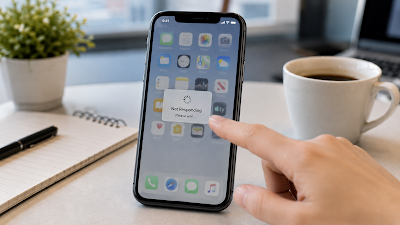
iPhone Apps Freezing or Not Responding? What Users Should Try First
Updated: May 2026
If an iPhone app freezes, crashes, or shows “not responding,” the problem may come from app bugs, low storage, network issues, outdated software, or temporary system problems.
Quick Summary
- Restart the app and phone first.
- Check storage if several apps freeze.
- Update the app and iOS.
- Check internet connection for online apps.
- Delete and reinstall only after backing up app data when needed.
Common Causes
- App needs an update.
- iPhone storage is almost full.
- Internet connection is unstable.
- iOS needs an update.
- The app’s server may be down.
Fixes to Try
- Close the app and open it again.
- Restart your iPhone.
- Check Wi-Fi or cellular data.
- Update the app from the App Store.
- Update iOS if available.
- Free up storage if the phone is nearly full.
- Delete and reinstall the app only if needed.
App Freezing Checklist
| Situation | What to Try |
|---|---|
| One app freezes | Update or reinstall that app. |
| Many apps freeze | Check storage and restart the phone. |
| Only online apps freeze | Check Wi-Fi or cellular connection. |
| After iOS update | Update apps and wait for background tasks to finish. |
Helpful Tip
If several apps freeze, check iPhone Storage first. Low storage can affect app performance.
FAQ
Should I delete the app immediately?
No. Restart and update first. Deleting may remove local app data.
Can low storage cause app freezing?
Yes. Very low storage can affect performance and updates.
Why does one app keep crashing?
The app may have a bug, outdated version, or server issue.
Can restarting help?
Yes. Restarting can clear temporary problems.
Final Thoughts
App freezing is usually fixable with updates, storage cleanup, connection checks, and a restart. Avoid risky “speed booster” apps and focus on safe troubleshooting.
Disclaimer: This article is general tech help. App behavior may vary by developer and iOS version.
Sources: Apple Support iPhone restart, storage, and update resources.